Syllabus+ Online Course
Introduction
The purpose of this course is to equip you with the skills to use Syllabus+ - whether you are new to the system or returning for a refresher. This course also covers how to create 'once off' room bookings.
When you have successfully completed this course, you can then apply for access to the live environment
Download and fill out the form on this Room Bookings and send to timetable.support@tudublin.ie
Your feedback on this course is welcome.
Please note:
If you are required to manage Academic timetables, you need to review the entire content in these pages. If you only require access to book rooms for meetings and 'one off' events, you need to review content in all sections up to and including the Room Bookings Page section and in both cases you can practice using the Training Environment. You can take the course at any time and there is no requirement to complete the course in one sitting. Do this course at your own pace and utilise the training environment frequently to practice and build up your skill level.
>>> Saving/Writeback <<<
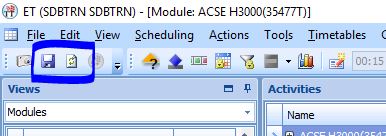
An essential aspect of the system is to ensure you use the 'Writeback' feature to synchronise any changes to the central timetable database. After you alter an existing activity or create a new one or create a room booking you need to click on the 'Writeback' button in the toolbar. To see other peoples' changes, use the 'Refresh' button which is next to the 'Writeback' button:
Learning Plan:
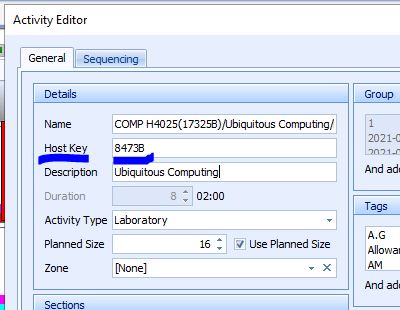
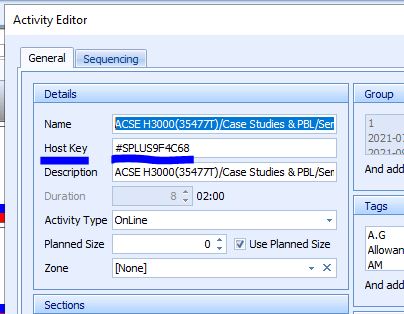
Take each 'module' below in the sequence that they are laid out, read through, watch videos and practice while logged onto the training environment. When ready, modify an activity in a module/programme that you are familiar with i.e. change the room and/or lecturer and repeat this three times (with separate activities) noting the 'Host Key' each time (located in the 'Activity Editor').
If you are only concerned with Room Bookings - create three separate one off room bookings and note the three 'Host Keys'. You do not need to complete any of the learning modules after the Room Bookings module.
'Activity' Host Keys come in two different formats (see screen shots below). The shorter version indicates that this activity was originally on the system before we migrated from the previous Timetabling system (CMIS), and the longer format are ones created as new activites in Syllabus+. To locate an activity's Host Key, double click an activity in spreadsheet view, second field down: