
Loggin onto the training environment
Accessing the Test/Training environment
Key learning outcomes here:
- How to log onto the training environment to practice
- Submit 'Host Key' for assessment
Use the following details to access the 'Training' environment. Any changes you make to activities in the training environment have no impact whatsoever on the live system, so please experiment and modify multiple activities to gain a sufficient level of confidence in the use of the system.
Once you review the content in these pages you can then log in and practice. You need to modify/create at least three activities to satisfy the requirement to apply and obtain access to the live system. Copy and paste the web address below to a browser of your choice and then follow the screen prompt to log in.
- Contact peopledevelopment@tudublin.ie for a username and password
- Please email the 'Host Key' of the activities you have modified to the timetabling manager
Log on at this url: https://tudublin-test.t1cloud.com/T1Default/CiAnywhere/Web/TUDUBLIN-TEST/Workplace
This will bring you to the home page,
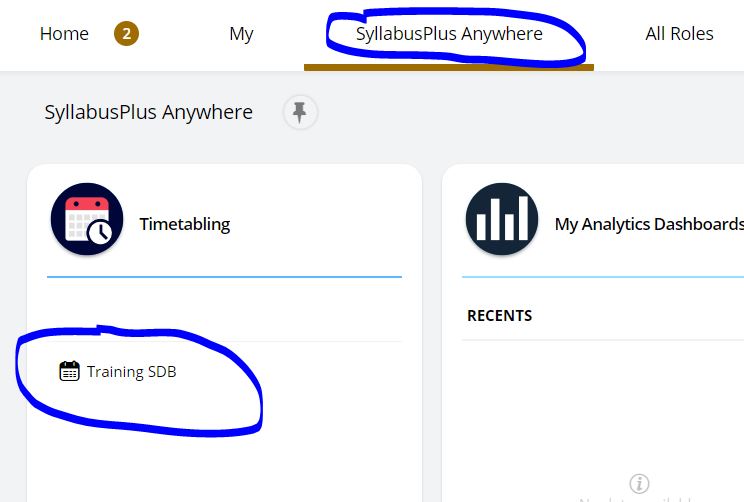
Click on 'SyllabusPlus Anywhere' tab, then click on 'SyllabusSDB' on the left hand side
The next pop up message will present three options, ensure, 'Reload data from the server' is selected then, click the OK button. It can take an extra minute or two to fully load the database and software. Bear in mind this is a 'Web based' system and therefore its performance is depended on a good broadband connection.
It can take a while for the software to load - so give it 5 minutes, at least (also note you may get an error - just click Ok twice to get past that - it doesn't really affect the use).
If all is successful you will see a screen showing timetable 'Views' and a listing of 'Locations' (rooms), 'Programmes of Study', 'Modules' or another resource. The screen is made up of four 'Panes':
- Views
- Activities (upper part = listing, lower part = grid/spreadsheet)
- Status
- Reasons
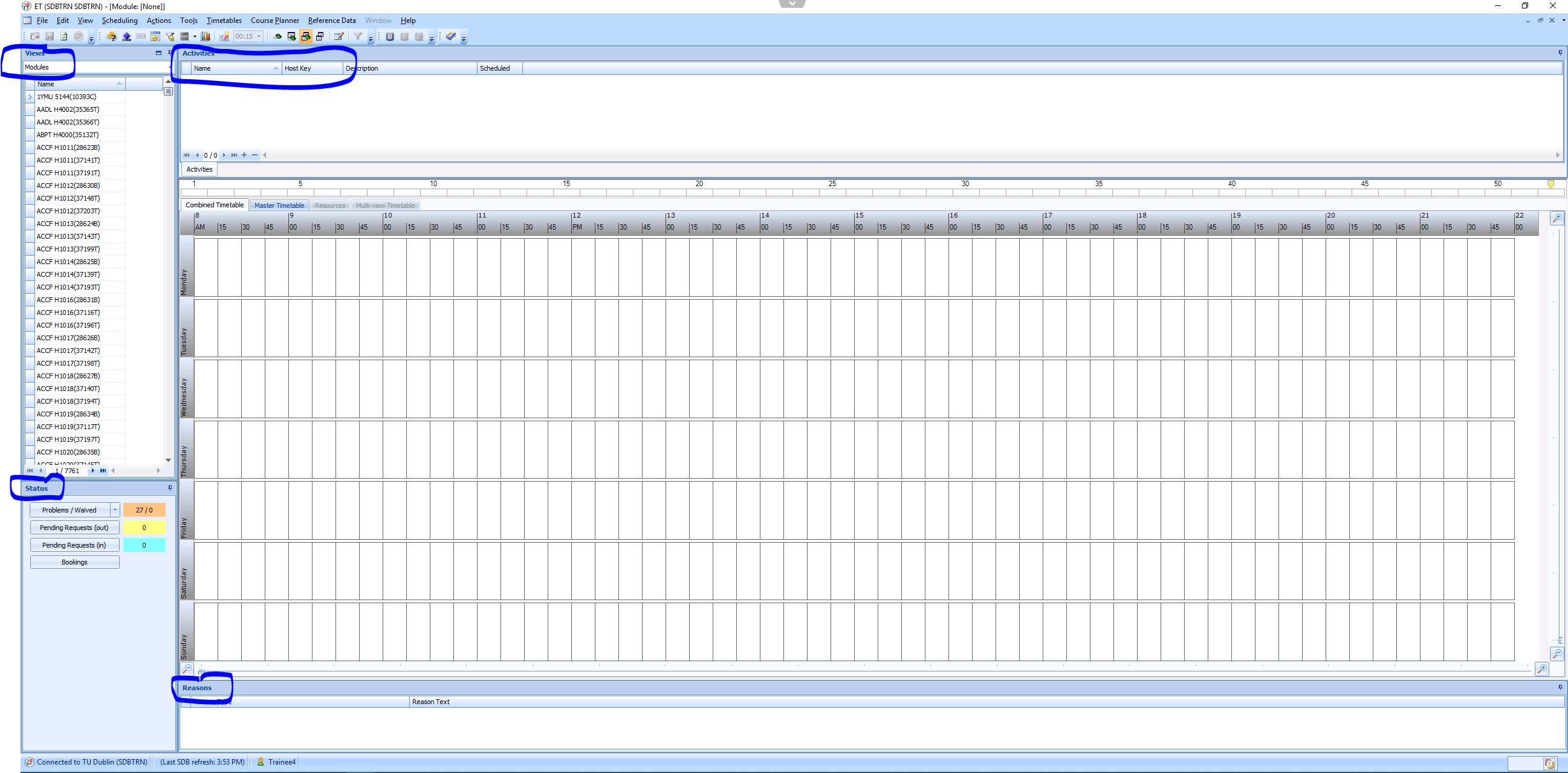
Click on a Module or Programme of Study to see its associated activities in the Activities pane (listing and spreadsheet view).