Sharing LinkedIn Learning Content in Your Brightspace Module
You can share LinkedIn Learning content in your Brightspace module content. You can either
or
- Embed a LinkedIn Learning content in your module. This option may not be ideal as when viewing embedded LinkedIn Learning content, students will not be able to access your course quizzes or track their course completion.
Add a link to a LinkedIn Learning content in your module
When the student clicks on the link to the content in your Brightspace module, they will be prompted to log in to LinkedIn Learning using their TU Dublin account.
To share a LinkedIn Learning link:
1. Go to LinkedIn Learning.
2. Find the course or video you want to share.
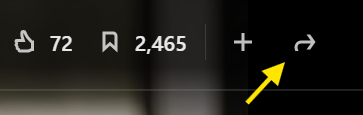
3. Click the Share icon at the top-right corner of the course homepage:
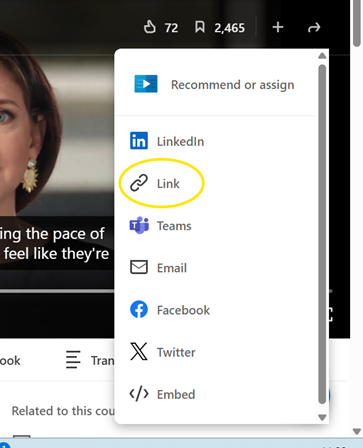
4. From the dropdown menu select Link:
5. You can choose to share either the link to the entire Linkedin Learning course or the link to the current video only. Make your selection.
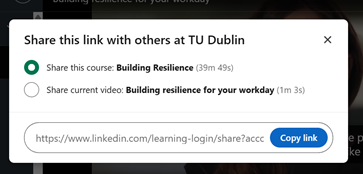
6. Click Copy to copy the link.
7. Open the Brightspace course where you wish to share the Linkedin Learning content.
8. Select the page content where you wish to add the link.
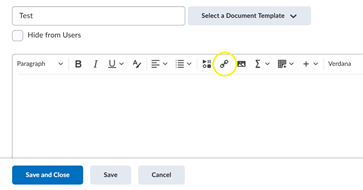
9. Select the Insert Quicklink icon on the formatting toolbar:
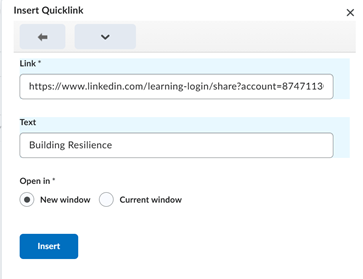
10. Select Link.
11. Paste the link into the URL field.
12. Add the name of the course or video you are sharing to the Text bar. Click on "Open in New Window".
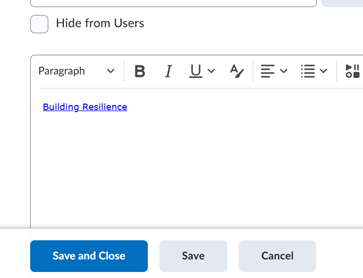
13. Click Insert:
Embed a LinkedIn Learning content in your module
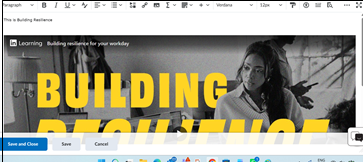
Embedding a Linkedin Learning video or course in Brightspace adds a frame on the Brightspace page where students can play the video or course from within Brightspace.
Remember there are restrictions with accessing quizzes and tracking course completion with embedded content. Therefore, if you wish to embed Linkedin Learning content, you should also include a link to the content below the video.
To create embedded Linkedin Learning content in Brightspace:
1. Go to LinkedIn Learning.
2. Find the video you want to share.
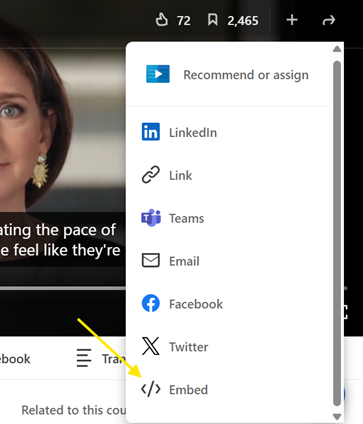
3. Click the Share icon at the top-right corner of the course homepage:
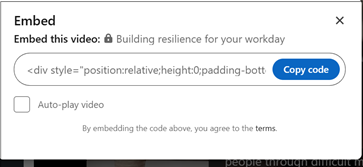
4. From the dropdown menu select Embed:
5. Select Copy Code.
6. Open the Brightspace course and page content where you wish to share the Linkedin Learning content.
7. Click Edit and select where you wish to embed the Linkedin Learning content.
8. Select the Insert Stuff icon on the formatting toolbar:

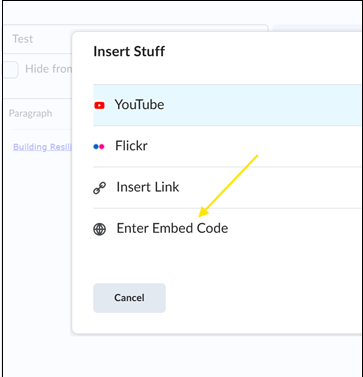
9. Select Enter Embed Code:
10. Paste the embed code and click Next:
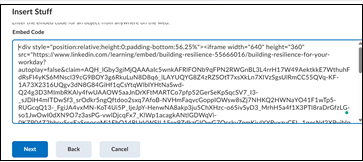
Optional: A popup may appear saying the video is blocked, click Allow to have it embedded on the page and then click on Insert.

11. The Linkedin video has now been embedded on the page. Click on Save and Close to make the changes effective.