
Guide to Embedding Digital Media in Learning Materials
Digital media such as videos, audio clips, images, and interactive graphs can significantly enhance the learning experience by making content more engaging, accessible, and memorable.
This guide provides academic staff with practical instructions for embedding a variety of media types directly into Brightspace module content. Each section includes step-by-step guidance and tips for using the HTML editor in Brightspace to embed media effectively.
Use the sections below to explore how to incorporate different types of digital content into your Brightspace learning materials.
To embed digital media (e.g., videos, podcasts, graphics) into a Brightspace page:
1. Navigate to the module or topic where you want to add the content.
2. Click Create File or edit an existing content item.
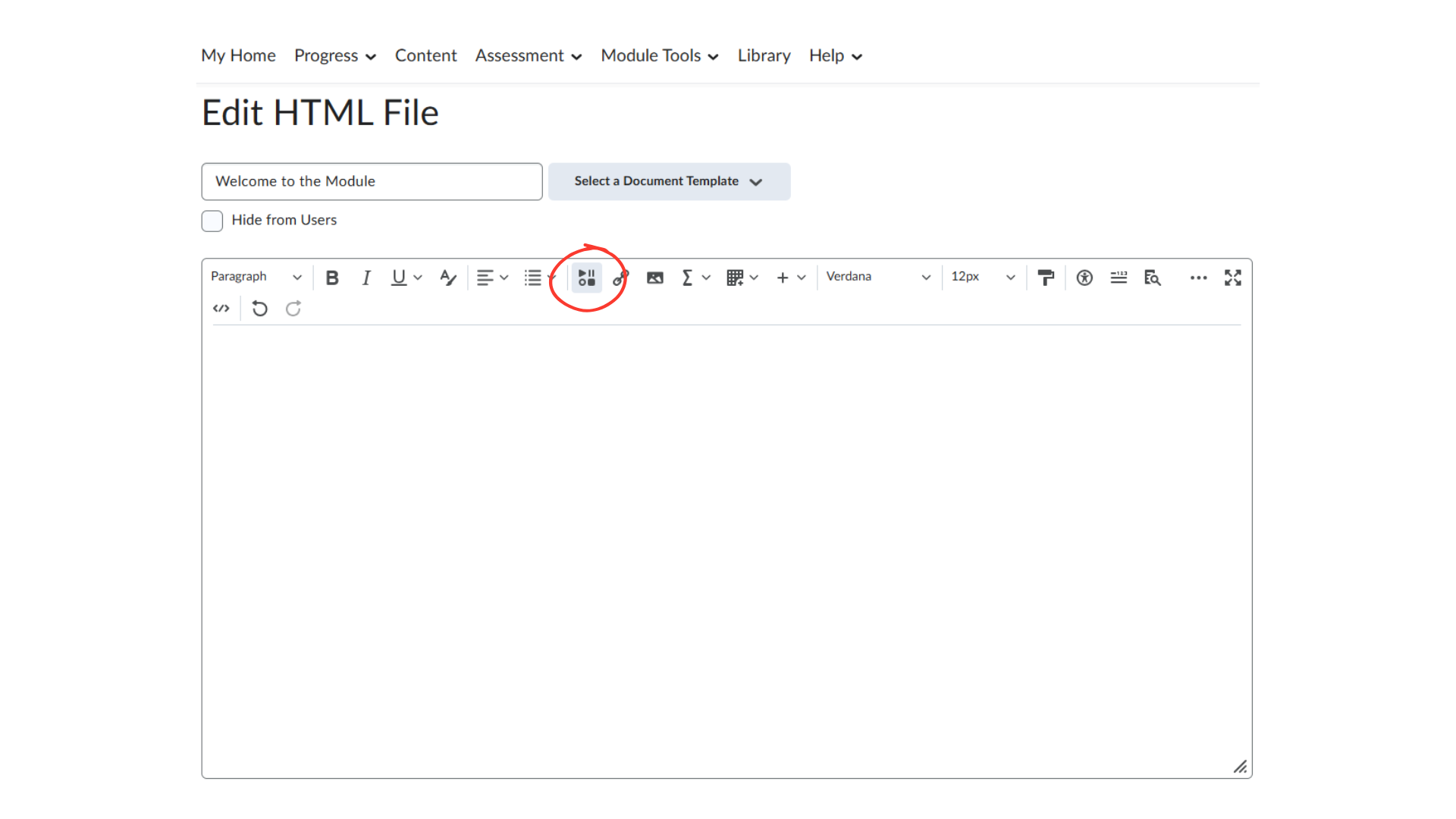
3. In the HTML editor, click the Insert Stuff button (the icon with a play symbol).
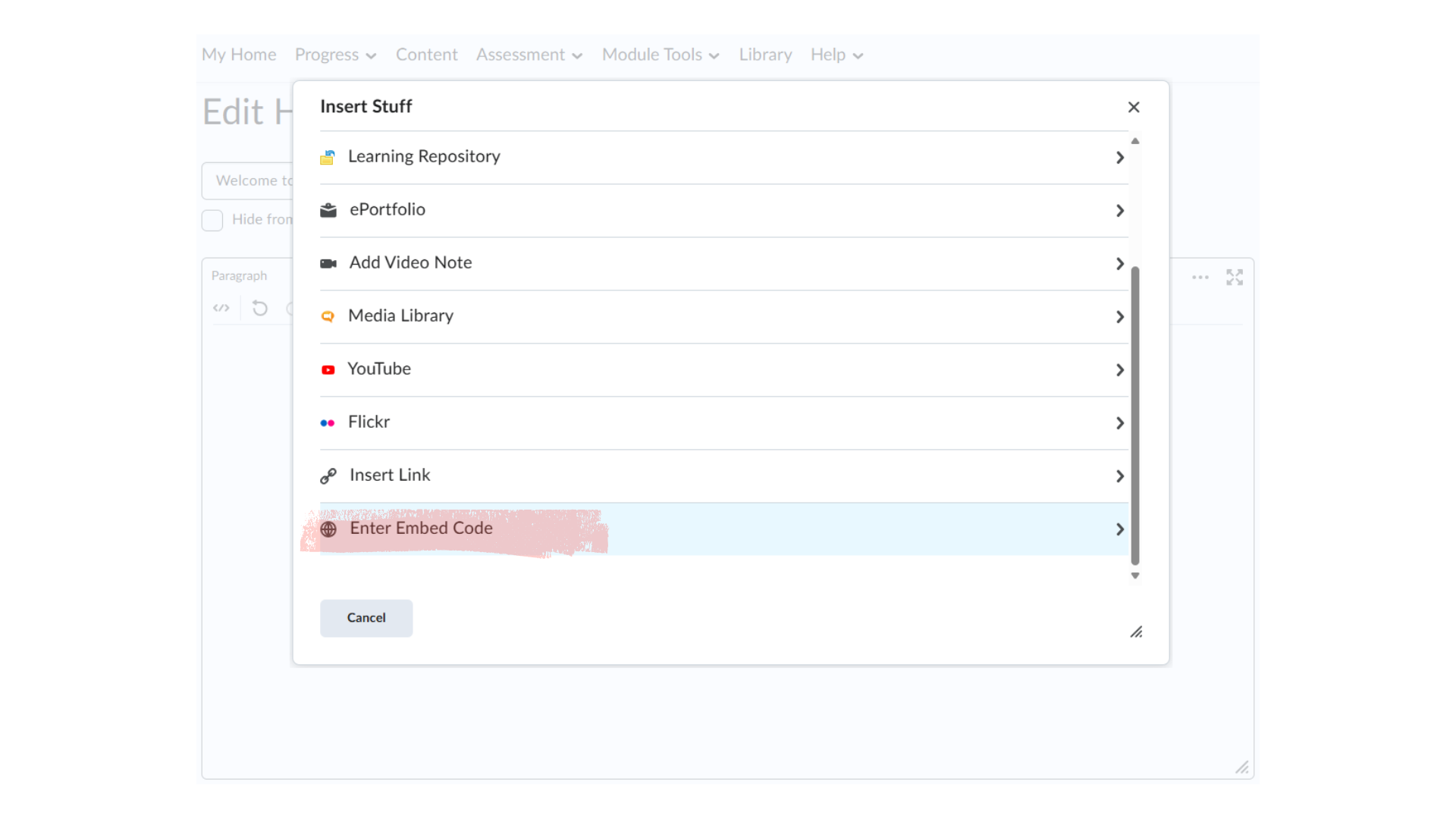
4. Scroll down and select Enter Embed Code.
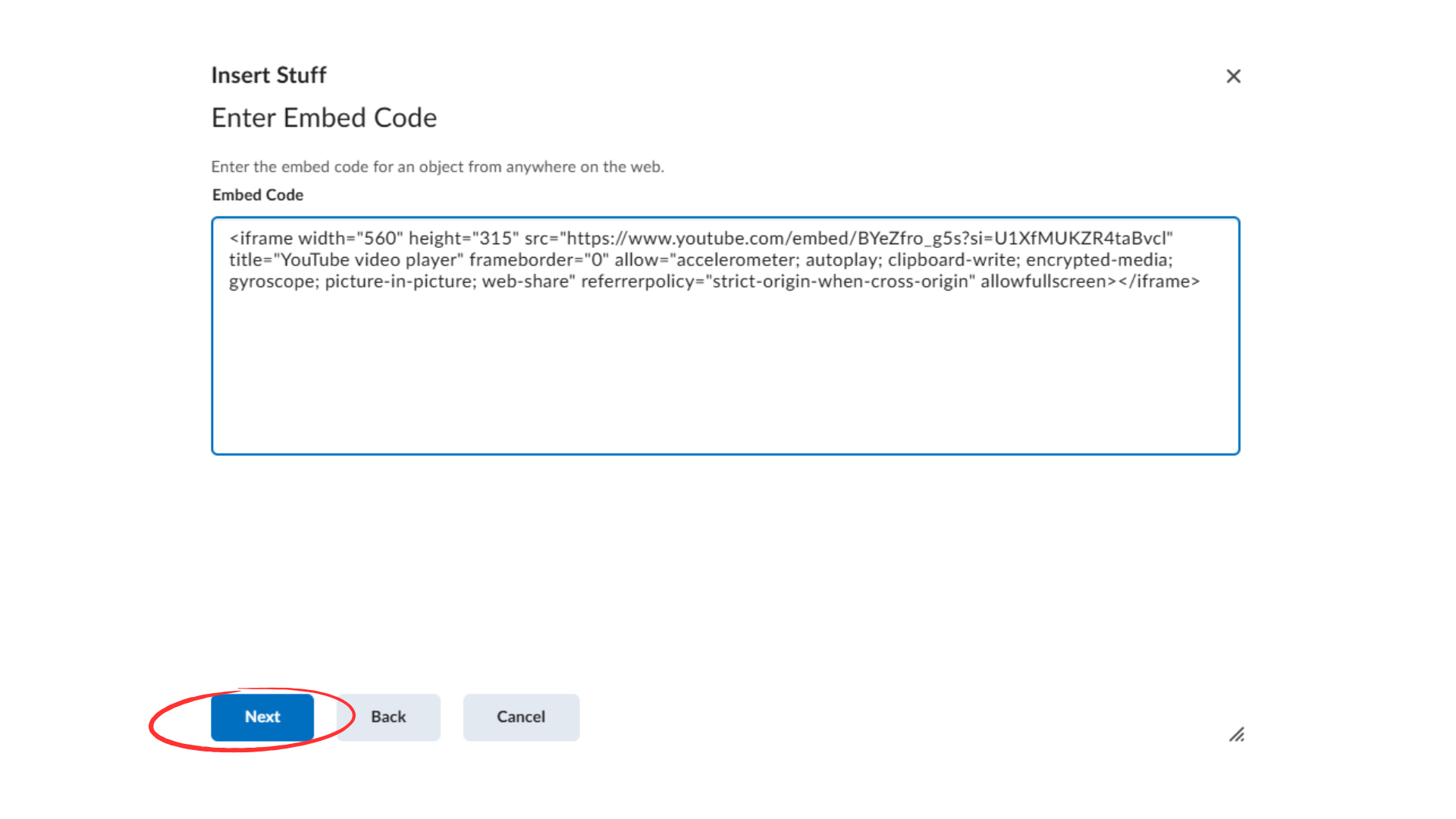
5. Paste the embed code (e.g., YouTube iframe or Adobe Express embed code, see how to get this in the later sections).
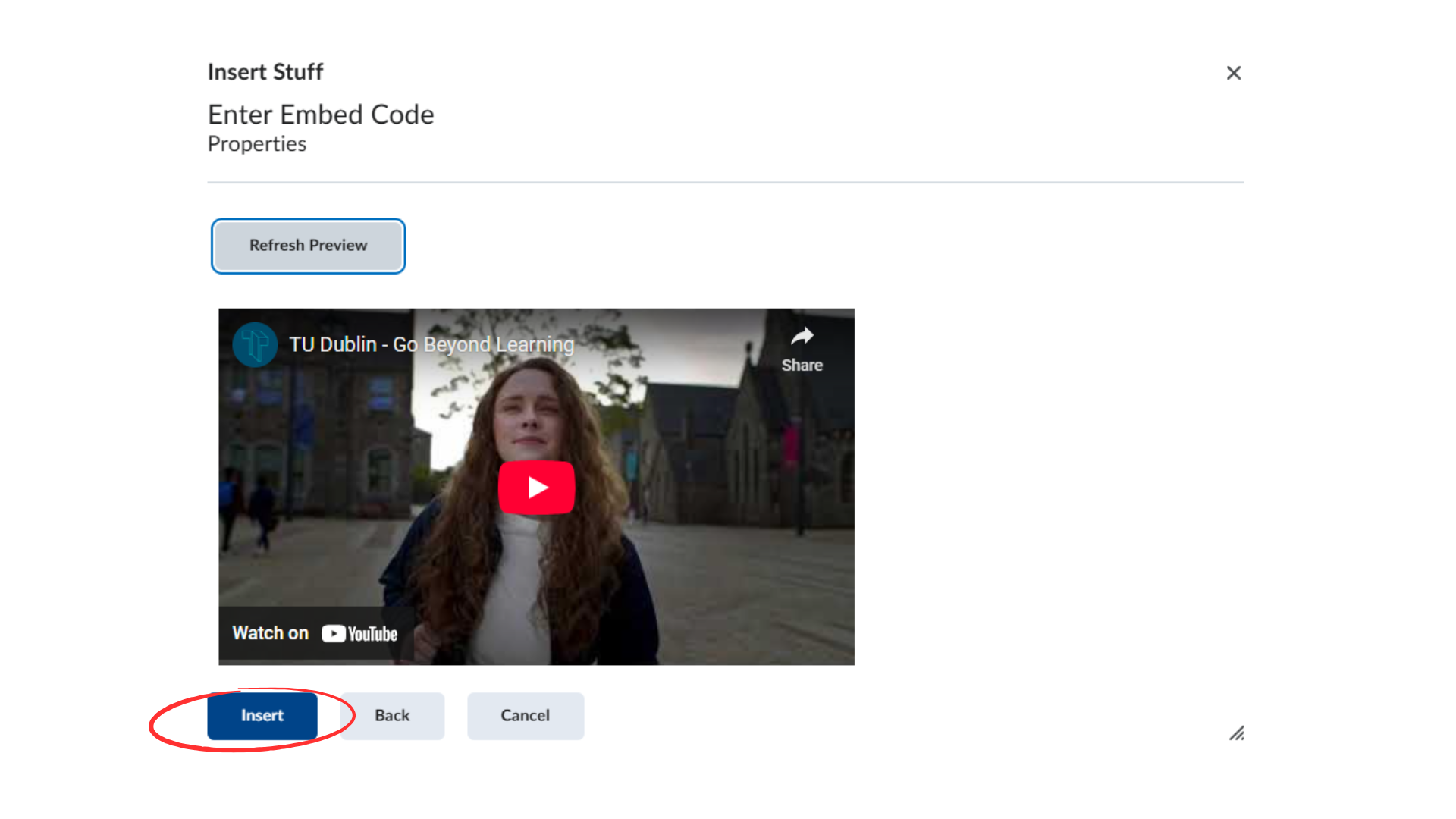
6. Click Next, then Insert to preview the content.
7. Once you're satisfied, click Save and Close.
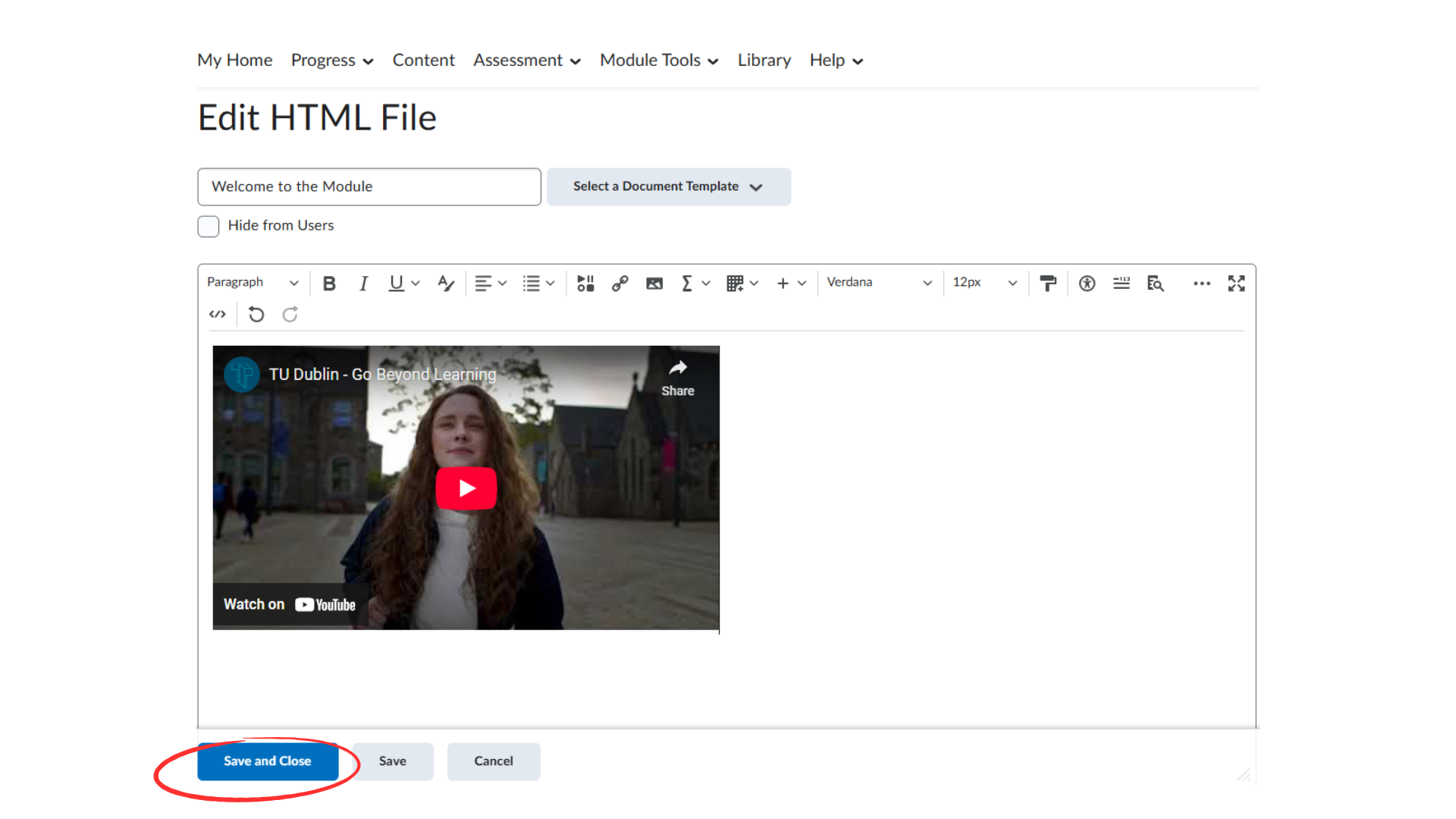
8. Your embedded content will now display on the module page.
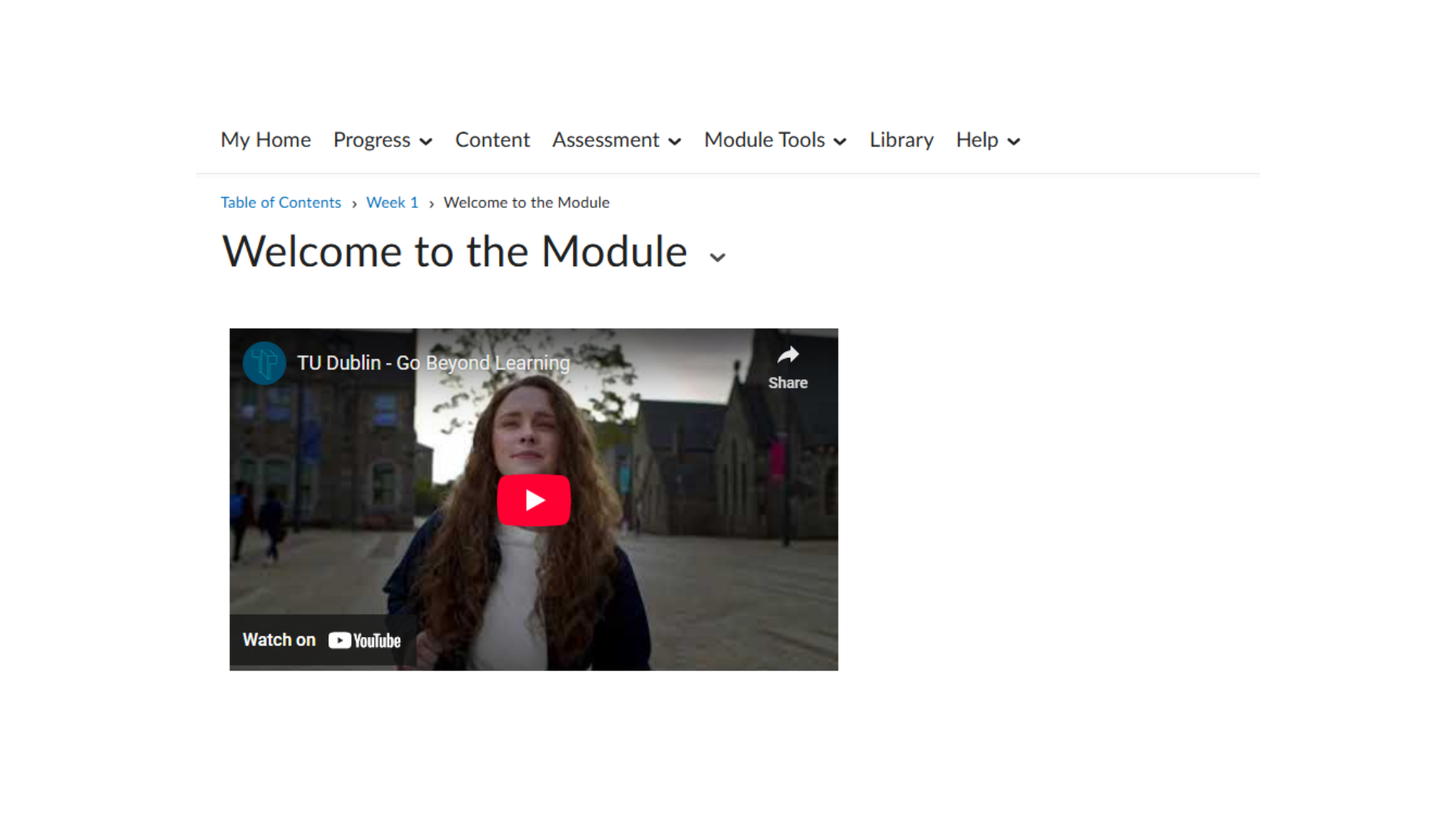
Tip: Always use the Insert Stuff option to avoid code conflicts and to ensure proper rendering in Brightspace.
Purpose: Enhance learning with visual explanations, tutorials, and recorded lectures.
Embedding from YouTube:
Steps:
1. Go to the YouTube video you wish to embed.
2. Click Share under the video.
3. Select Embed and copy the HTML <iframe> code provided.
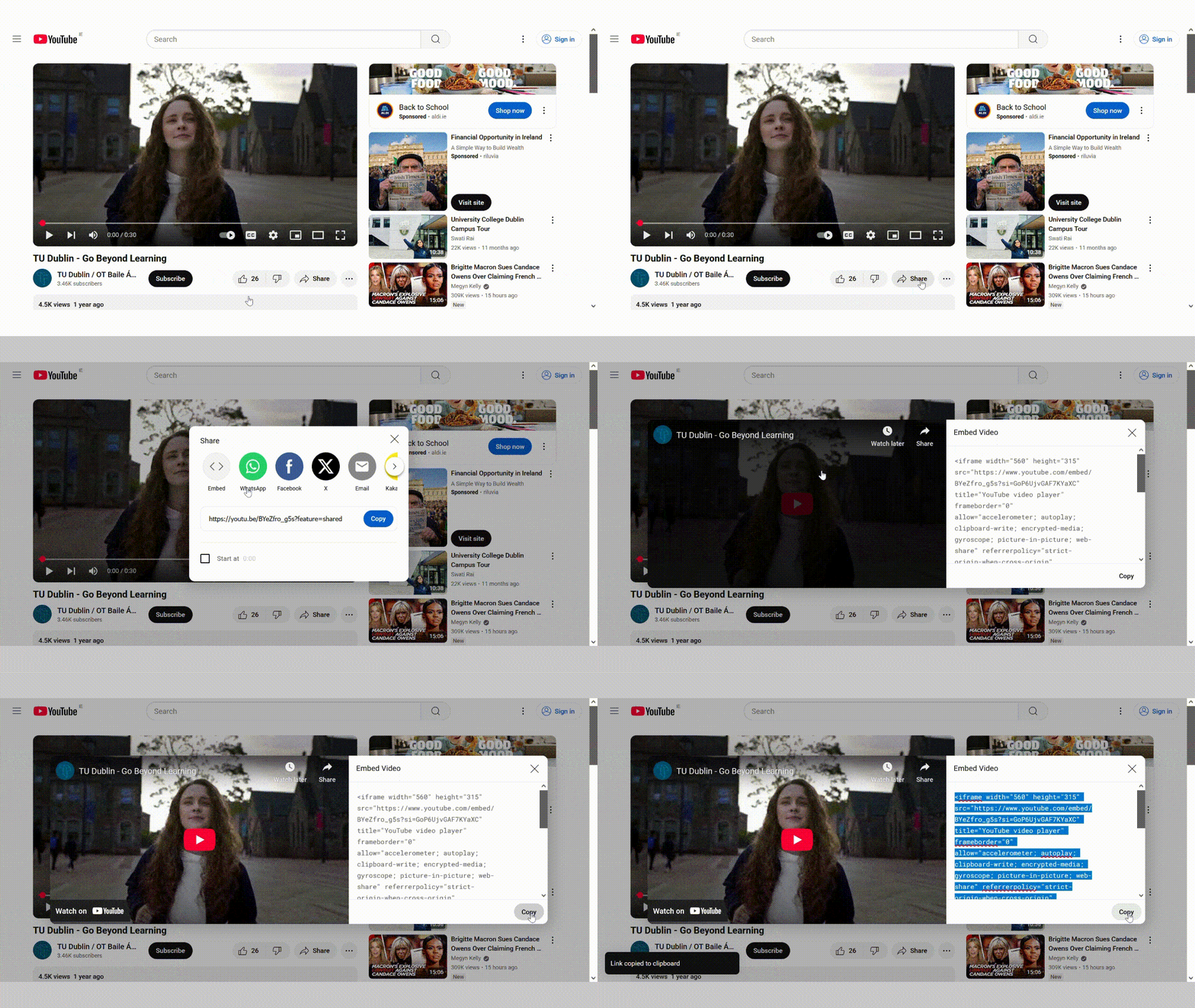
4. Paste the embed code into Brightspace using the HTML editor.
Embedding from ScreenPal:
- Log into your account at screenpal.com
- Click My content at the top of the page.
- Go to your Library and hover over the video you'd like to embed. Click Manage.
The video opens in the preview area, with several tabs displayed on the right.
- Click the Share Video tab.
- Scroll down to the Video Embed area.
- To select the video embed settings and player controls, expand the Video Embed - Player Controls/Settings section.
- For Embed Code Size, ‘Responsive’ is selected by default, which auto-scales your video based on the size of the webpage.
- To view a preview of how your video will look when it is embedded, click Preview Embed.
Click Copy Code to copy the code snippet and then paste it into the Brightspace HTML editor.
Tip: Always ensure that videos are captioned, appropriate in duration and relevant to your topic.
Purpose: Use audio to provide flexible, on-the-go learning - great for expert interviews.
From Spotify or Apple Podcasts:
- Look for the Share or Embed option.
- Copy the provided embed code.
- Paste into the Brightspace HTML editor.
Note: Always provide a text transcript for accessibility.
Purpose: Use visuals to illustrate concepts, data, and examples.
There are many online sources for free images, but just because they’re free doesn’t mean you shouldn’t attribute them to the image creator. An attribution like ‘Image by John Smith on Unsplash’ with the correct URL linked in the text is appropriate.
Recommended Free Sources:
How to Embed:
- Find an image and download it.
- Upload the image to Brightspace.
- Alternatively, use direct image URL (if allowed by the platform).
Example Embed Code:
<img src=" https://unsplash.com/photos/a-motorcycle-rider-races-on-a-dirt-track-W6OLXCew2a0" alt="Descriptive text" width="600">
Tip: Include alt text for accessibility.
Purpose: Visualise data to support arguments or learning analysis.
Tools to Create Graphs:
- Excel (export your graph as an image)
- Adobe Express
- Chart.js or Datawrapper (for interactive embeds)
Embedding from Adobe Express:
1. Create a project (video, graphic, infographic, etc.)
2. Click Share > Publish
3. Choose Embed and copy the code.
Example Embed Code:
<iframe src="https://express.adobe.com/page/PROJECT_ID/embed" width="100%" height="400px" frameborder="0" allowfullscreen></iframe>
4. Paste the embed code into the Brightspace HTML editor.
Tip: Embed graphs in context, with interpretation or explanation nearby.
It is very important to use appropriate dimensions and file sizes for the images you use in learning content.
Firstly, you want the image size to be responsive across different devices.
Secondly, you want to minimise the amount of digital clutter in the VLE – in most cases for example, a smaller JPG file will suffice for use on Brightspace; a larger PNG file takes up more room and probably adds no extra value for the learner.
Use Adobe Express to quickly and easily resize images to the dimensions you need. Learn more in this video.
- Always check copyright compliance and credit original sources.
- Use responsive embed sizes for mobile learning.
- Keep media short, relevant, and purposeful.
- Always provide alternative text or transcripts for accessibility.