
ScreenPal (Video Creation)
University licensed screen recorder and interactive video creation tool (for staff)
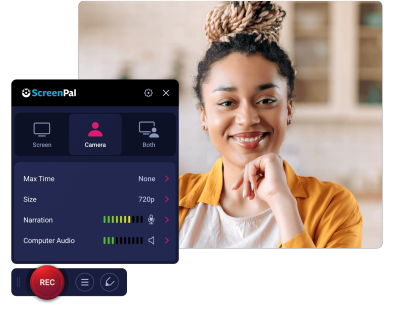
ScreenPal is a University licensed screen recorder tool available to all TU Dublin staff. It easily captures all movement on your screen making it simple for you to create content for online delivery, pre-record lectures, make instructional videos, provide student feedback and much more.
It includes features such as webcam feed, speech-to-text captioning, blurring of sensitive information, background music, cutting and inserting sections, adding arrows, text, images and sound effects. You can also create quizzes and embed them into your video, the grades from which can can be synced with the Brightspace gradebook, as well as add call-to-action buttons and annotations.
You can easily share your videos through Brightspace or through the ScreenPal cloud.
While ScreenPal is great for prerecording lectures, there are lots of other types of videos you might consider making such as:
- Introducing Yourself and/or Course Content
- Instructional 'How To' Videos
- Instructor Made Videos to Generate Discussion
- Provide Student/Group Feedback
- Demonstrate Problems & Solutions
- Give Assignment Tips
- Explain Course Terminology
- Information Videos that free up 'In Time' class
1) Privacy
Before recording, make sure that you turn off anything that will give the screencast viewer any private information about you that you do not wish to share with them. For example, turn off all notifications such as those on an instant messenger that you might use or MS Teams chat etc.; use a browser that does not display personal browser tabs; and remove any personal background desktop photos. If you will be using a webcam during the screencast make sure that no personal information is displayed behind you like family photos etc. If asking students to record screencasts, please ask the same of them.
2) Do you have permission to use all of the content included?
This question relates to copyright ownership and permissions.
• If the materials have been created by you, then you are free to record.
• If you are using materials created by someone else then you must find out if the material is still in copyright. (Copyright arises automatically on the creation of an original work and, in most cases, copyright lasts for the creator’s lifetime plus seventy years. See the Copyright Association of Ireland’s Frequently Asked Questions for more information.)
If the materials are still in copyright, you will need permission to use the material (preferably with attribution). This is also the case if you are recording third party works such as materials owned by students, consultants, external speakers. If the materials are no longer in copyright, you may use it freely without permission.
3) Data
ScreenPal only accesses TU Dublin data in the provisioning, operation, and maintenance of the services for TU Dublin. They collect information from and about the devices users use to access their services. This includes things like IP addresses, a unique device identifier, the type of browser and device users use, operating system, location, date and timestamp of user transactions, the computer peripherals users use such as webcam, any errors that may occur during the use of their Services, and identifiers associated with users
devices. They may derive a device’s approximate location by analyzing other information, like an IP address. They may use this log data and device-related information in order to provide and improve their Services.
When users contact ScreenPal through their Services, they may collect information provided in custom messages sent through the forms or contact information provided on their Services. ScreenPal uses certain trusted third parties to help them provide, improve, protect, and promote their Services. Where applicable, ScreenPal contractually limits Personal Information use by third parties. ScreenPal may collect analytics data, or use third-party analytics tools such as Google Analytics and Amplitude Analytics, to help them measure traffic, user events, and usage trends for the Services and to understand more about the demographics of their users. They may also track analytics data and viewing activity of content created by or hosted on the Service. ScreenPal may share information as needed to provide the Services but they will not sell or rent user information to third parties for their direct marketing purpose.
4) How will TU Dublin use ScreenPal data?
The ScreenPal TU Dublin system administrator may use account data in order to contact ScreenPal users by email. Once the email has been sent the downloaded account data will be deleted.
The ScreenPal TU Dublin system administrator may also use account data to delete accounts inactive for longer than three years in line with the data retention period agreed with the TU Dublin Data Protection Office. Account holders of accounts that are inactive for longer than three years will be contacted before the account is deleted and given the chance to reactivate their account thereby retaining their data.
The TU Dublin system administrator can access all of the videos stored in the ScreenPal cloud and can view any analytics available behind each video (such as unique and total views). They will not use this data in any way.
All TU Dublin staff can avail of an institutional licence.
There are 2 steps to gaining complete access to the tool.
- Simply open a web browser and type https://screenpal.com/tudublin. You will be brought to the TU Dublin single sign on page. Just sign in with your TU Dublin email and password and get instant access to a licence.
- View how to easily download the ScreenPal App (Software) on your chosen device. You will need the App for accessing the complete editing, managing and sharing functionalities of the tool.
You can then download the application:
ScreenPal has created a host of excellent, easy to follow, short online tutorials and guides.
- It is necessary to download the ScreenPal app to create resources. The app is used in conjunction with the browser version.
- To learn more about this, review the ScreenPal Workflow Guide.
- Use this Accessibility Checklist - Video and Audio to guide you as you create.
If you want to know the basics or even get creative, learn all about capturing, editing, managing and sharing your recordings, then head over to https://screenpal.com/tutorials.
If you want to know how to add ScreenPal content to a Brightspace module then read this helpful step-by-step article.
Alternatively, you can access training videos created by the Digital Skills Coach below.
If you would prefer, text-based guides can be accessed here: Quickguide to ScreenPal.
.png) |
.png) |
.png) |
|---|---|---|
.png) |
.png) |
 |
 |
.png) |
 |
.png) |
 |
TU Dublin staff access to ScreenPal includes AI-powered tools that can assist with the creation and enhancement of video content. These features can be used to generate video summaries, create chapters and timestamps, produce captions, and create AI voiceovers. These tools can help staff make video resources more accessible, organised, and engaging for teaching, learning, and professional activities.
It is recommended that users review and refine any AI-generated content before publishing or sharing it with viewers. While AI can support content creation and accessibility, generated summaries, captions, chapters, and voiceovers may not always be accurate or fully reflective of the original content.
Users remain responsible for ensuring that all content used within ScreenPal is accurate, relevant, accessible, and suitable for their intended audience. Care should therefore be taken to check AI-generated materials before use in educational or professional settings.
ScreenPal Guidelines
With reference to the Guidelines for the Responsible Use of Artificial Intelligence in the Public Service, we recommend the following:
- Consider informing viewers if summaries, captions, chapters, or voiceovers have been generated using AI.
- Review all AI-generated content to ensure it is accurate, relevant, and appropriate before use.
- Apply human judgement when evaluating and using AI-generated summaries, captions, chapters, and voiceovers.
- Be aware that AI-generated content may reflect biases from training data; review and amend content where necessary to ensure fairness and inclusivity.
- Ensure AI-generated content accurately represents the source material and aligns with the intended learning outcomes and audience.
- Check AI-generated captions, chapters, summaries, and voiceovers carefully, as they may contain errors or omit important context.
- Remember that the use of Generative AI has an environmental impact due to the computing resources required.
- For further guidance, please refer to TU Dublin's Learning, Teaching and Assessment (LTA) resources on the use of AI.
If you are having a technical issue with the software please contact the ScreenPal visit their Support Desk.
All other queries can be directed to DigitalEducation@tudublin.ie