
Secure, accessible, and user-friendly email
You can access your TU Dublin Microsoft Outlook email directly via the Microsoft 365 platform.
Getting Started
- When you register with TU Dublin you will receive your student email address and password via your own personal email address.
- Next, you will then need to activate your TU Dublin email account in order to start using it.
Watch the video below for instructions for email activation:
For information on how to activate your email account, reset your password and more see below:
All TU Dublin students and staff use the Microsoft Office 365 Platform to access their email.
- All students are provided with a @mytudublin.ie email address.
- Your username is [your student number]@mytudublin.ie.
For staff:
- All staff are provided with a @tudublin.ie email address.
- Your username is [firstname.lastname]@tudublin.ie.
- If you register for Self-Service Password Reset by visiting https://www.tudublin.ie/password
- You’ll be able to reset or change your password 24/7.
- Registering couldn’t be easier just provide an alternative email address, mobile number or provide answers for a number of security questions and you’ll never be locked out of your email again.
The most common issue affecting 0365 logon, once your username and password are correct, is cached credentials. Browsers cache credentials to speed up loading web pages. If you are experiencing an issue it may be that you have a personal or work Microsoft account that is cached in the browser.
The easiest way to get around the issue is to use an incognito window for your student or staff email account:
If using Google Chrome or Microsoft Edge:
Windows, Linux, or Chrome OS: Press Ctrl + Shift + n.
Mac: Press ⌘ + Shift + n.
The screen should then go black, in the URL bar again type www.office.com and click sign in.
Sign in with your studentnumber@mytudublin.ie or staffnumber@tudublin.ie and password that was issued or you have set.
If you are still having issues please contact Need IT Support? | TU Dublin
Getting Started: Outlook for Android
This guide will help you get access to TU Dublin email on your Android device.
Installation and Setup
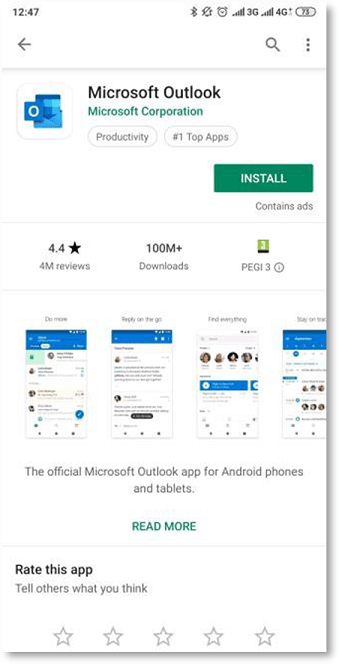
Step 1 – Installation – Download and Install the Microsoft Outlook app from the Google Play Store.
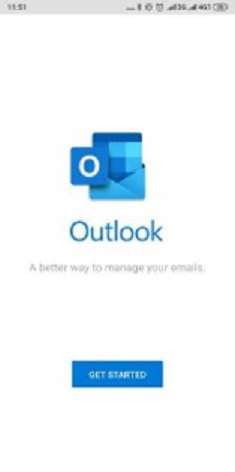
Step 2 – First Time Launch – Launch the Outlook App once installed. Click ‘Get Started’
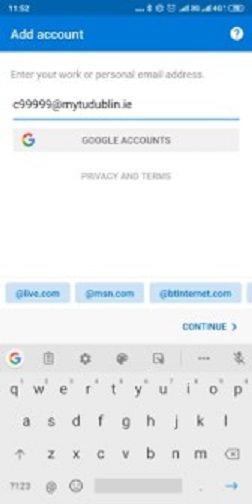
Step 3 – Add account – Add your TU Dublin email address where indicated. (Note: If you already use Outlook for your personal or other mail you can add an account in settings).
Click ‘Continue’.
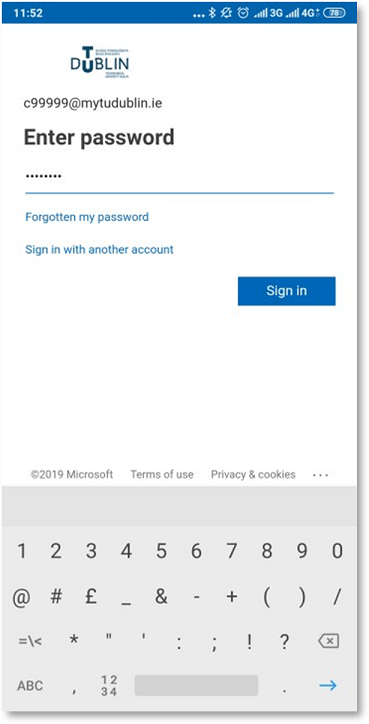
Step 4 – Supply your password – Supply your password and click ‘Sign In’.
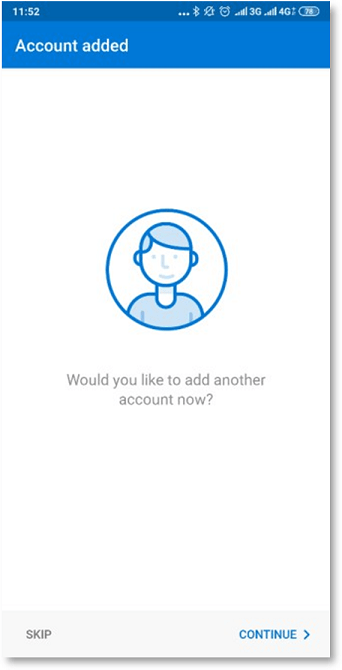
Step 5 – Account Added – Tap ‘Skip’ When prompted to add another account.
Step 6 – Welcome to your inbox - You should now be accessing your mailbox via the Outlook app on your Android Device.
Quick Start Guide: Outlook Desktop
Setting Up:
Step 1 - Open Outlook - Click on the Outlook Desktop icon on your Desktop or if it does not appear here click start and type ‘Outlook’.
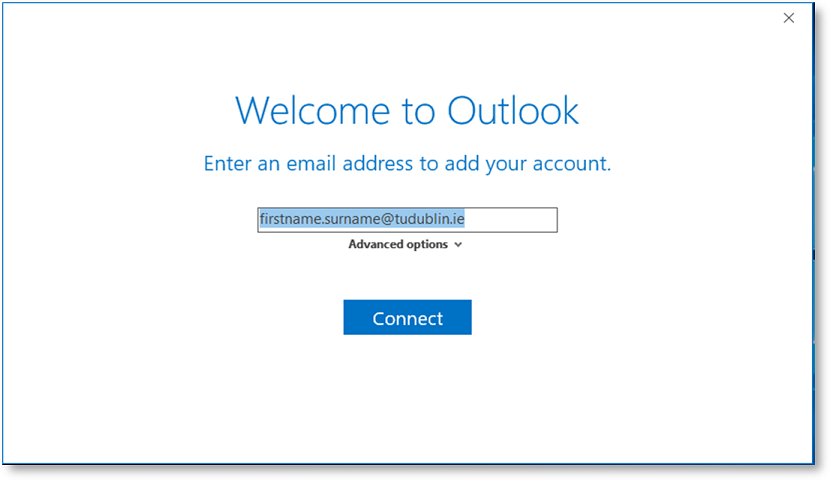
Step 2 – Enter your email – Enter your email address in the provided field and click ‘Next’.
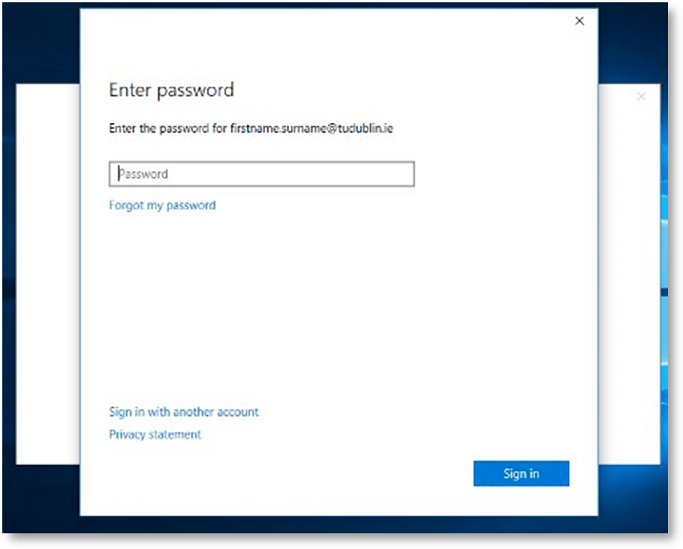
Step 3 – Enter your password – Enter your password and click ‘Next’.
Step 4 – Allow Windows to remember your account – On this screen click ‘Yes’.
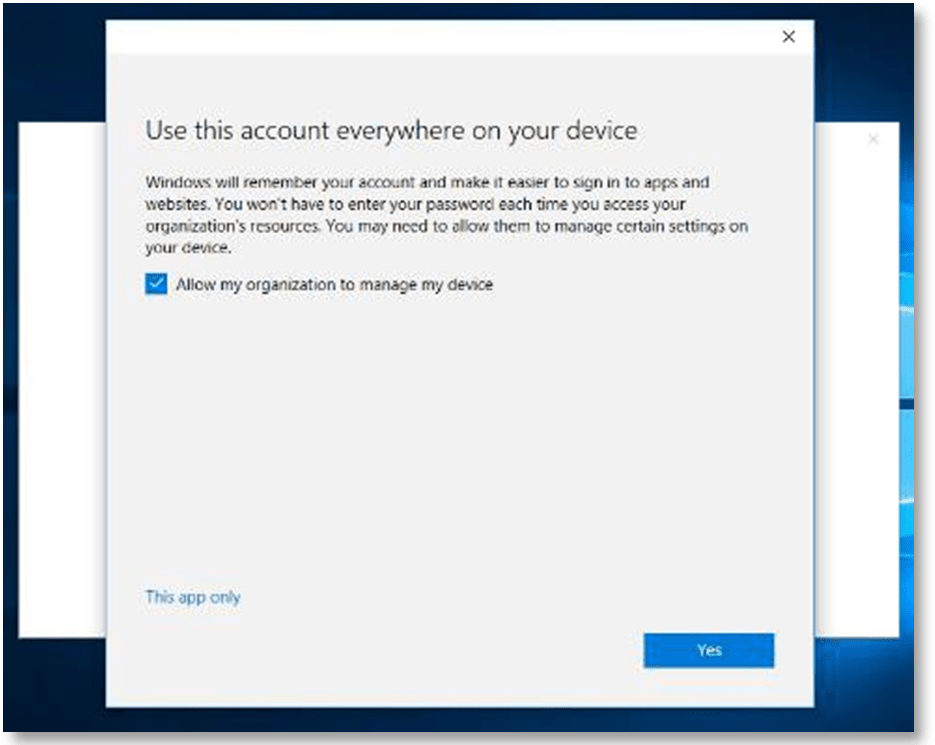
Step 5 – Complete Setup – Click ‘Done’ and allow Outlook to complete setup by creating a local copy of your mailbox. (This may take a minute or two).
Getting Started: Outlook for iOS
This guide will help you get access to TU Dublin email on your iOS device.
Installation and Setup
Step 1 – Installation – Download and Install the Microsoft Outlook app from the App Store. Tap ‘Get’ or the Cloud icon if you have previously downloaded Outlook.
Optimised.png)
Step 2 – First Time Launch – When the app is finished installing the ‘Get’ will change to ‘Open’.
Tap ‘Open’ to launch the Outlook App.
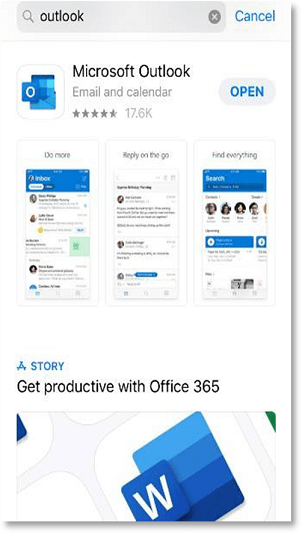
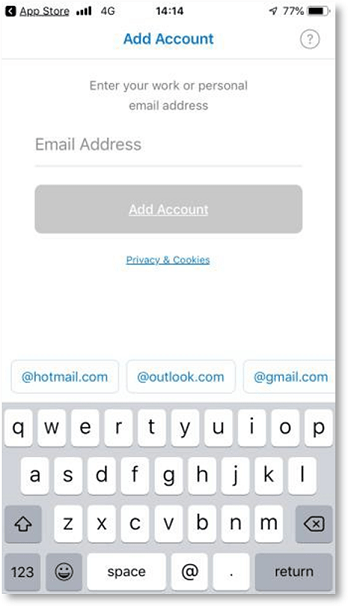
Step 3 – Add account – If you already have email accounts configured on your device such as Outlook.com, Hotmail.com or Gmail.com, Outlook may find them automatically when you open Outlook.
Type in your TU Dublin email address and Tap ‘Add accounts’.
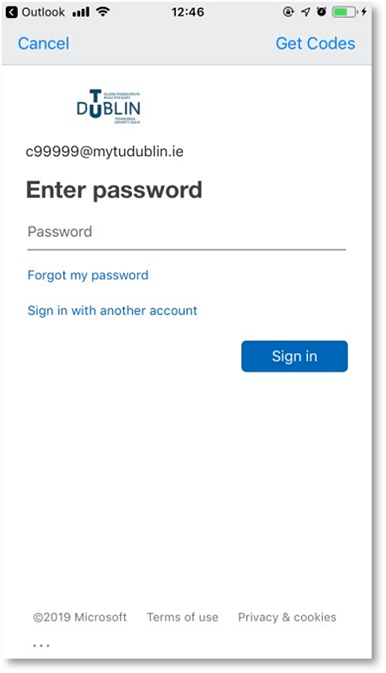
Step 4 – Enter your password – Tap ‘Skip’ When prompted to add another account.
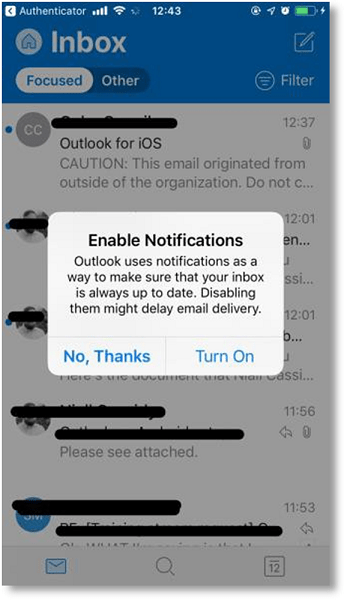
Step 5 – Enable Notifications (optional) - At first time launch, when you pass all the login screens you may be presented with a dialog asking you to enable notifications on your device. Please tap the option that is appropriate to you. You can turn on and/or modify any notifications created for Outlook at a later stage. To get up and running quickly we will tap “No, Thanks”.
Step 6 – Welcome to your mailbox – You are now set up with your TU Dublin mailbox on your iOS device.
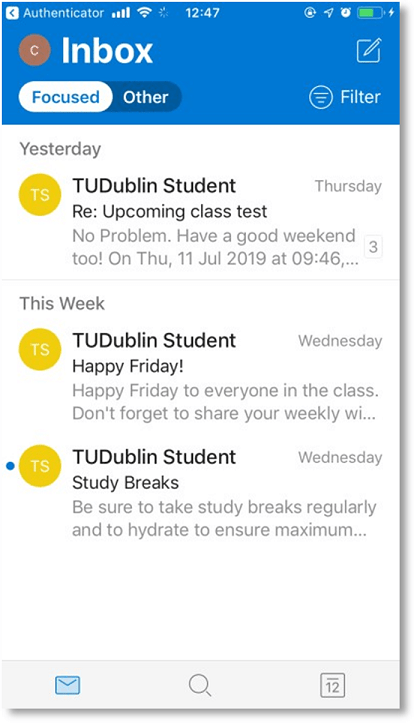
Step 7 - Review/Edit Settings (optional) – You can review settings like Focused Inbox, Signatures, Notifications etc. in the settings of the Outlook App.
What is a Class Mailing List?
- Class Mailing Lists are Email-Enabled Security Groups for use by staff who need to send emails to a particular Class/Programme-Year that meet the "Current Student" criteria.
What is the correct email format for Class Mailing Lists?
-
The new Class lists naming convention is : ClassList-202526-<Program>-<Stream/Year>-<PartTime/FullTime>@myTUDublin.ie
eg: ClassList-202526-TU875-2-FullTime@myTUDublin.ie will include all this year's second year students that have been progressed into the current term 202526.
If students have not been progressed into the current year, they will not be included in any ClassList-202526 lists.
Who can send mails to Class Mailing Lists?
- All staff email accounts have permission to send to the above mailing lists and the members of each list can also mail the list they are in.
- Additionally, some Department Mailboxes, for example Careers or Exams have been given permission to send emails to class lists too.
- And lastly, the members of each class mailing list can send to their own class mailing list but not others. This is so students can use their own Class Mailing List for collaborative mailshots.
- External addresses cannot send mails directly to Class Mailing Lists (SPAM risk!)
How are Students added to Class Mailing Lists?
- The criteria for each mailing list currently is that the students are listed as being ES (Enrolled), EL (Eligible to Register) or RP/XR (Repeat / External Repeat) and have the particular Programme-Code and Year in their student account and the respective PartTime/FullTime designation too. The class mailing lists in Office 365 are updated twice a day based on the attributes in the student accounts. Any changes to student Enrolment Status or Program Code or Year of Study or PartTime/FullTime will result in changes to the respective class lists.
If you cannot find a class list that you think should exist, please contact Student Services to confirm the Enrolment Status, Program Code, Year of Study or PartTime/FullTime attributes of the students in that cohort. They might not have been progressed to the current academic year. - Student accounts in Office 365 are updated based on data from the student registrations database Banner. Any changes to student Enrolment Status or Program code will only be reflected in Office 365 up to an hour later.
Progression of students from one year to the next.
- In September, student classes are progressed from one year to the next after exam boards. This is a complicated process and does not happen immediately for all students after exam boards and may take time.
- As above, any changes to Banner records will be updated in Active Directory, Brightspace and Office 365 and their respective mailing lists will then auto populate.