
Getting Started for Students
Students can access a wide range of technology services, including email, Wi-Fi, on campus printing, virtual learning environments, support desks and much more.
When you register as a TU Dublin student:
- You will receive an email to your personal account containing your student email address and a temporary password.
- With this information, you can activate your TU Dublin email account.
- As a registered student, you can access a wide range of Microsoft Office 365 services.
Get Started : Accessing & Activating your TU Dublin email account
When you join TU Dublin as a student you will have access to a wide range of Microsoft Office 365 services.
To access all our Microsoft suite services you will need a TU Dublin student email address.
Student Email
To access all our Microsoft Office 365 services you will first need to activate your email address.
For information on how to activate your email address:
- Visit our email information page
Microsoft Office 365 Suite
TU Dublin uses Microsoft Office 365 suite of products, including Outlook, Teams and OneDrive.
- Microsoft Outlook allows you to send and receive email messages, manage your calendar, store names and numbers of your contacts, and track your tasks.
- Microsoft Teams is a communication platform that you can use to videoconference with your classmates and share work for easy collaboration. We've created Technology Services microsite. to help get you started.
- You can find out how to use it with our Student Guide on using Teams.
- Microsoft OneDrive is an internet-based storage platform that will allow you to store your college work in the cloud and to collaborate with your classmates on projects easily. You can find out how to use it with our Student Guide on using OneDrive
Check out our 'How to Guides' to learn more about our Microsoft Office 365 suite
The Wifi on campus (eduroam) is a secure, world-wide roaming Wi-Fi access service developed for the international research and education community. eduroam lets you access Wi-Fi quickly from your laptop and mobile devices at other eduroam sites by authenticating against a server hosted at your own institution.
TU Dublin is a fully-enabled eduroam participant. Staff and students of TU Dublin can use the eduroam WiFi service when visiting participating sites and vice versa, eduroam visitors can access the eduroam service provided by TU Dublin.
How to Connect
-
Students and Staff: Windows devices
-
Students and Staff: Mac OSX devices
-
Students and Staff: Android & IOS Devices
-
Visitors Android & IOS devices
-
Visitors with other devices
Students and Staff: Windows devices
- Download the TU Dublin eduroam installer (known as CAT tool) from https://cat.eduroam.org,
- Select the option “student profile” or "staff profile"
- Install the profile (certificate and configuration settings) on your device
- Login using your email address and password
- Note, each time you update your password you must reinstall the CAT tool
Students and Staff: Android devices
- For Android users with version 8 or above please go to the play store and download the app GetEduroam.
- Login using your email address and password
Students and Staff Mac OSX devices
- Download the TU Dublin eduroam installer from https://cat.eduroam.org
- Select the option “staff profile” or "student profile"
- Install the profile (certificate and configuration settings) on your device
- Login using your TU Dublin email address and password. Ensure that you have activated your TU Dublin account prior to login. Ensure that you have activated your TU Dublin account prior to login
- Note, each time you update your password you must reinstall the CAT tool
Students and Staff iOS devices
- Download the TU Dublin eduroam installer (known as CAT tool) from https://cat.eduroam.org,
- Select the option “student profile” or "staff profile"
- Install the profile (certificate and configuration settings) on your device
- Login using your TU Dublin email address and password. Ensure that you have activated your TU Dublin account prior to login
Students and Staff: Android & IOS devices
- For Android users with version 8 or above please go to the play store and download the app GetEduroam.
- For IOS users visit the App store and download app GetEduroam.
- Login using your email address and password

Visitors Android devices
- For Android users with version 8 or above please go to the play store and download the app GetEduroam.
- Login using your email address and password issued by your participating institute.
Visitors with other devices
To log onto eduroam you will need the username and password issued by your participating institute.
- If you are a regular user of eduroam, your device should automatically connect to eduroam at TU Dublin however if this is the first time you are connecting to eduroam on your device please download the configuration tool associated with your home site from https://cat.eduroam.org
- Select "eduroam" from the list of wireless networks on your device
- Enter the appropriate username and password as advised by your home site
Note that authentication problems should be addressed to the support staff at your home site, as the security mechanisms within eduroam mean that much of the detail of the authentication step is not visible to the support staff at visited sites.
undefined
Virtual Learning Environment (VLE)
When teaching begins in semester one, some of your lectures may take place online and your lecturers will also share notes, reading lists and assignments via Brightspace (https://brightspace.tudublin.ie), TU Dublin’s Virtual Learning Environment.
Please Note: You must have logged in to your TU Dublin email address and set up your password and Multi Factor Authentication before attempting to log in to the VLE. If you haven’t done this yet, follow the steps at the top of this page.
Getting started on Brightspace
· Log into Brightspace here
· Username: Your TU Dublin email address
· Password: Your standard TU Dublin password
· Login problems? Contact IT Support at IT Support
At first login to Brightspace, students will be presented with a Declaration of Academic Integrity statement which should be fully read and must be accepted to proceed. Students will be auto enrolled on the Academic Integrity – Student module which needs to be completed as outlined in the Declaration of Academic Integrity statement.
Please view our Quick Start Guide for further information.
How to access Brightspace modules
Access to Brightspace modules is dependent on the modules selected during the registration process. Modules for your course will appear greyed out until the module is made available by the lecturer.
Problems? If your lecturer cannot help you with a problem in Brightspace, you can report it to IT Support
The New Unified Managed Print Solution, provided by MJ Flood, provides staff and students with secure printing, copying and scan to email services, using the Multi-Function Printer (MFP) devices located throughout the University.
General information:
- Print jobs can be sent to the "Safe Q TU Dublin" print queue and securely released from any MFP device
- You may print Black & White or Colour print jobs from any MFP device
- Collect your print jobs within 24 hours
- You must authenticate to use MFP device & collect prints using your staff/student card and pin
- Double-sided Black & White printing is default
Contact
For any queries on printing, copying or topping up your account, please contact MJ Flood at service@mjflood.ie or 01-4663500
Below are the costs of using the printing & photocopying services:
| Paper Size | B&W/Colour | Price € |
|---|---|---|
| A4 - Single-sided | B&W | 0.055 |
| A4 - Double-sided | B&W | 0.098 |
| A4 - Single-sided | Colour | 0.092 |
| A4 - Double-sided | Colour | 0.172 |
| A3 - Single-sided | B&W | 0.067 |
| A3 - Double-sided | B&W | 0.110 |
| A3 - Single-sided | Colour | 0.104 |
| A3 - Double-sided | Colour | 0.184 |
For further information, please contact MJ Flood at service@mjflood.ie or 01-4663500
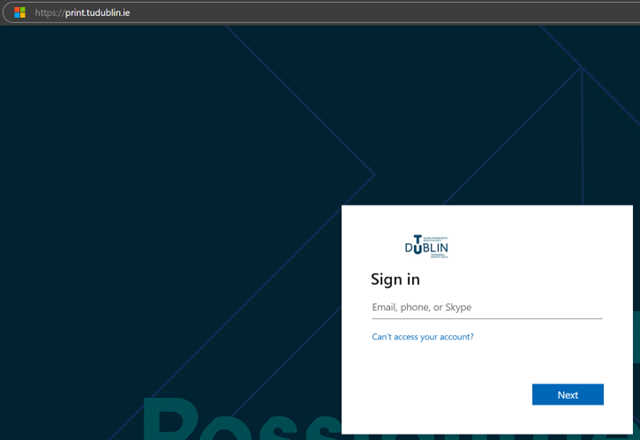
- Go to the print End User web Interface Portal web address: https://print.tudublin.ie
- Log in with your TU Dublin credentials.
- Select Payment option
- Recharge credit
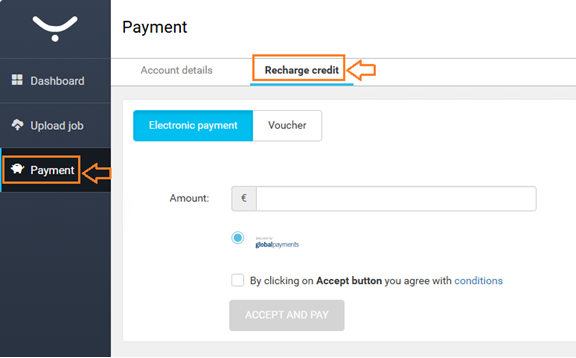
- Enter top-up amount (minimum €2.00).
- Accept conditions
- Accept and Pay
- Enter Card details
- Pay Now
*Please note, there are no top-up stations on campus any more. Student accounts can only be topped up Online*
1. Generating a PIN Code
To log in at an MFP you will need a PIN code and a registered TU Dublin Student or Staff card.
You can generate a PIN code by going to print account portal web address:
https://print-account.tudublin.ie
- Login to the print account portal with your TU Dublin credentials.
- Select "Generate PIN" option
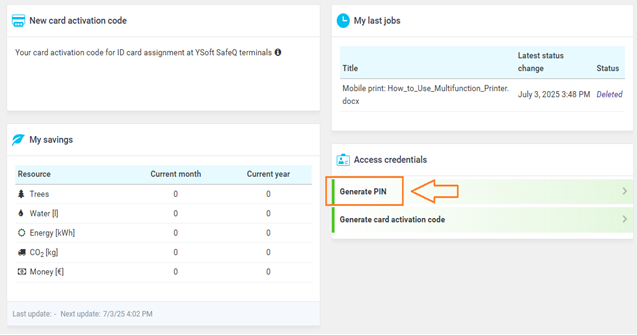
- Your unique PIN will be displayed at time of generation and an email containing your PIN will also be sent to your email address.
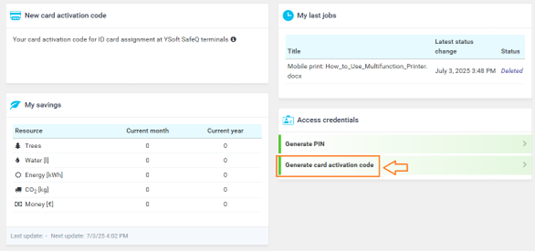
Please note, if your TU Dublin card isn’t recognised at a Multi-Function Printer, you can generate a card activation code and register it against your account at one of the printers.
2. Submitting Print Jobs
3. Releasing Print Jobs
Login to Multi-Function Printer.
- Tap your TU Dublin card over the card reader.
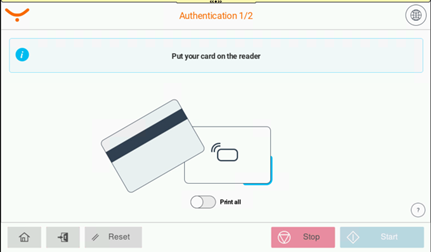
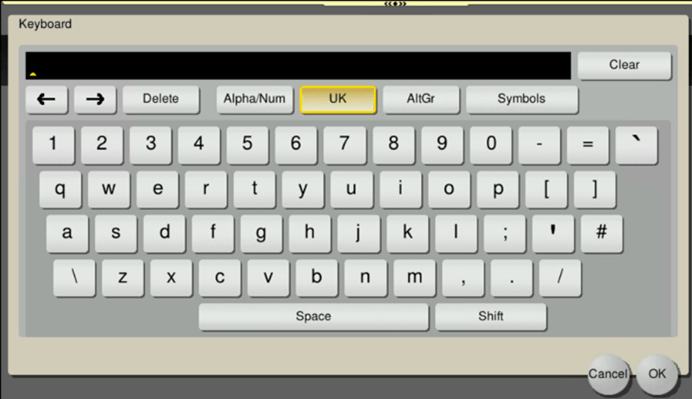
- Enter your PIN code at Multi Function Printer touch screen
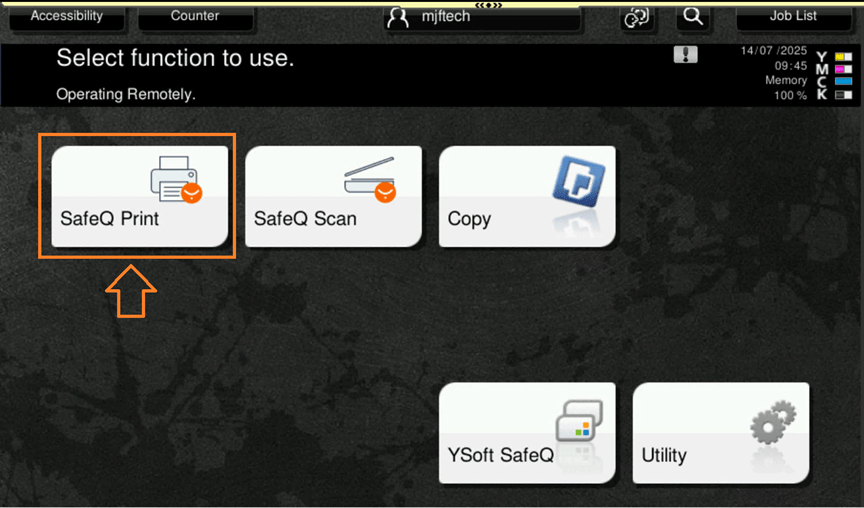
- Tap “SafeQ Print” on the touch screen.
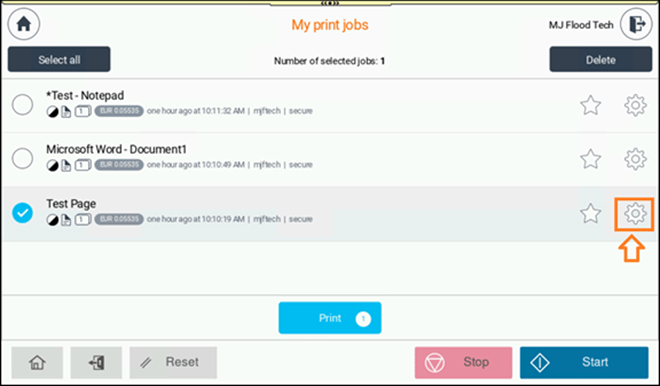
- Select print job/s to print
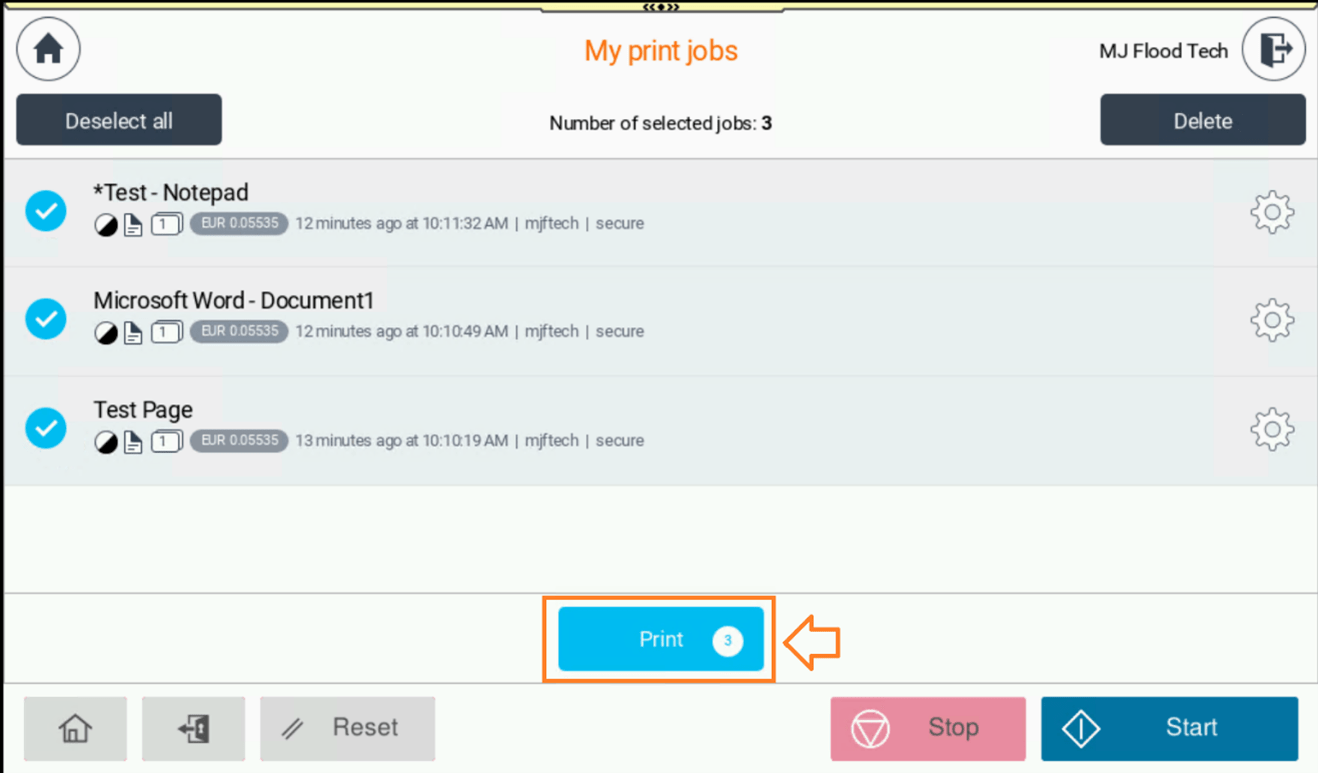
- Press Print/Start
Optional: To change output print settings at printer per print job, press clog wheel
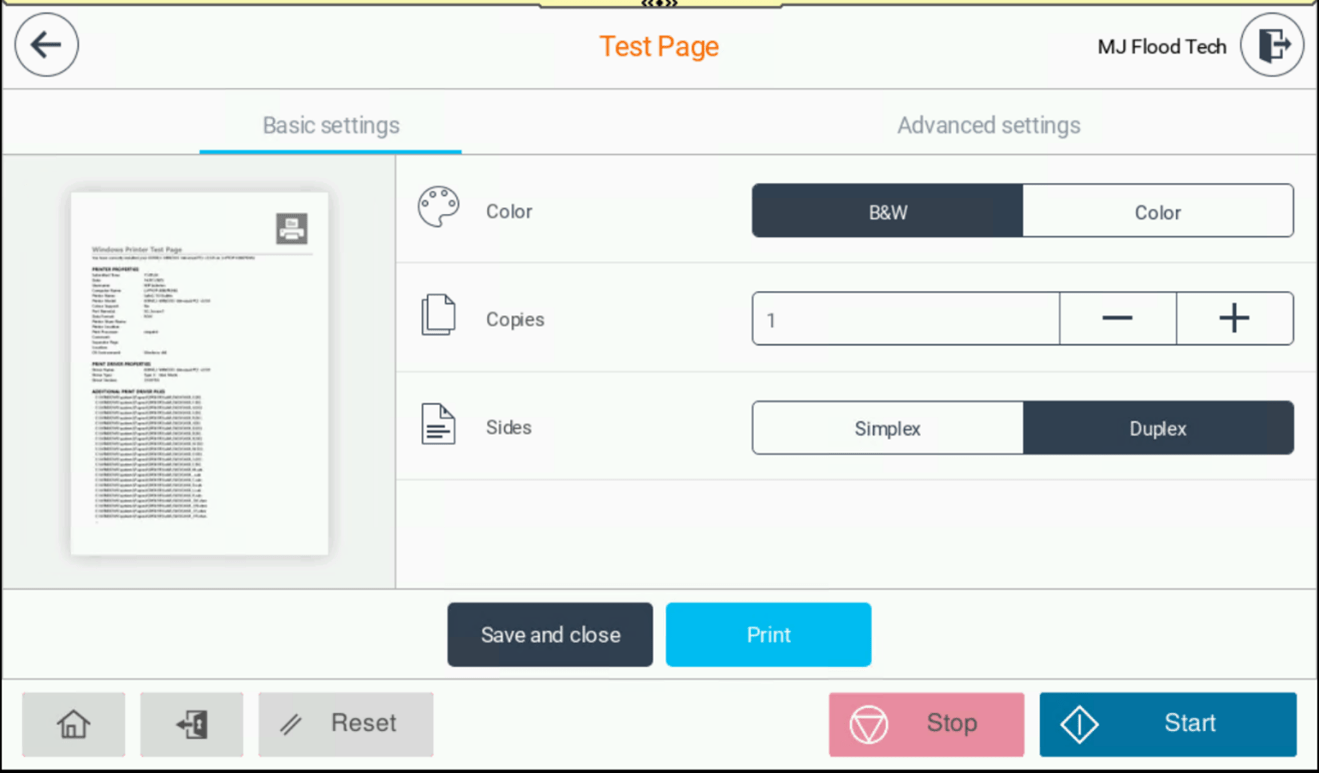
- Change required output settings.
- Press Print/Start
- To log out press the Access key
4. Scanning to Email
- Login to Multi-Function Printer.
- Place your document on the scanner.
- Tap “SafeQ Scan” on the touchscreen
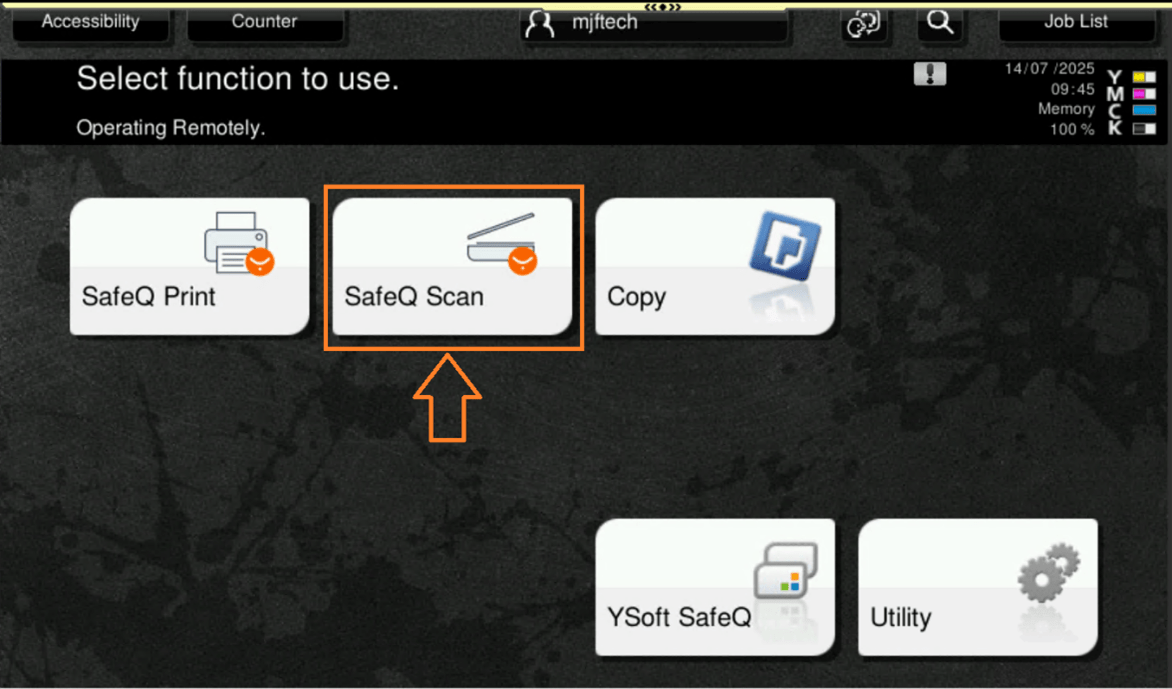
- Select Scan to My Email
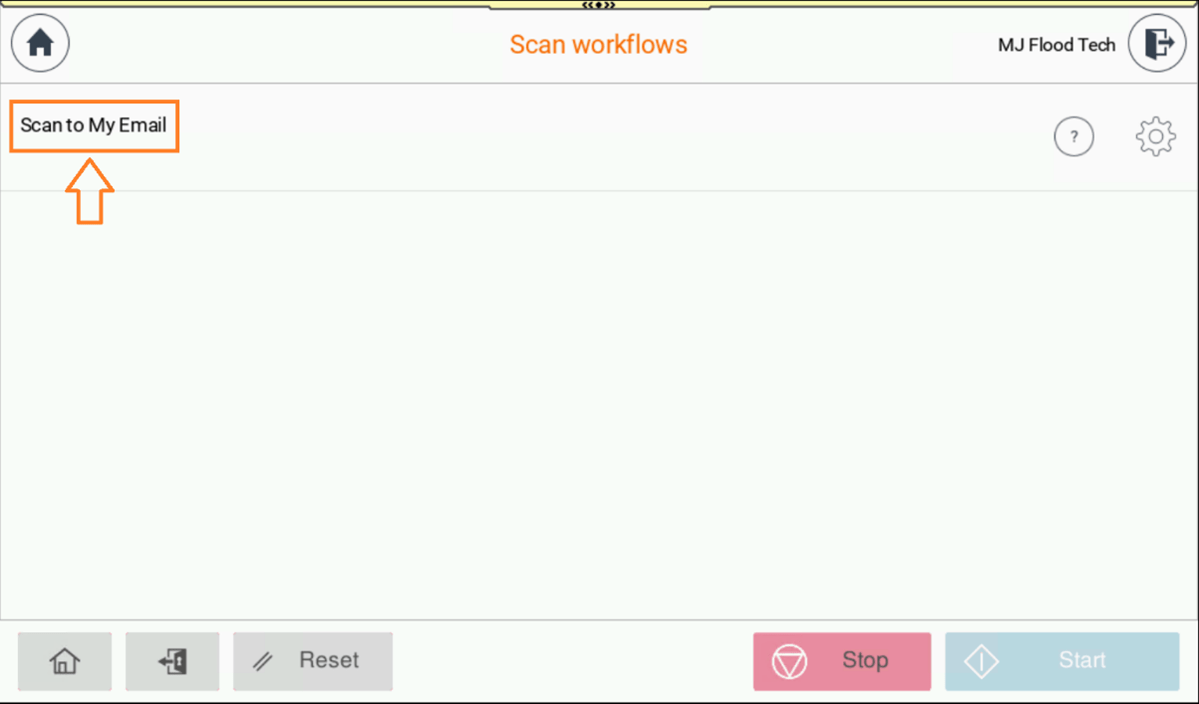
- Press Scan/Start
- Optional: To change default scan settings press the clog key
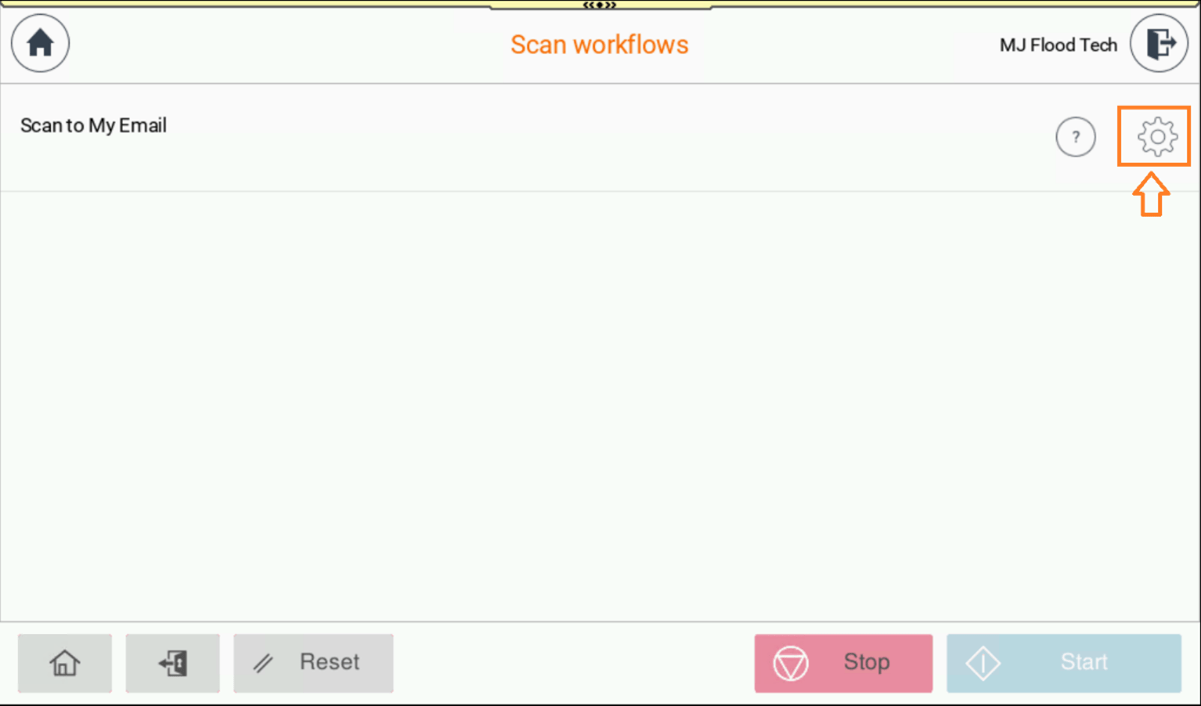
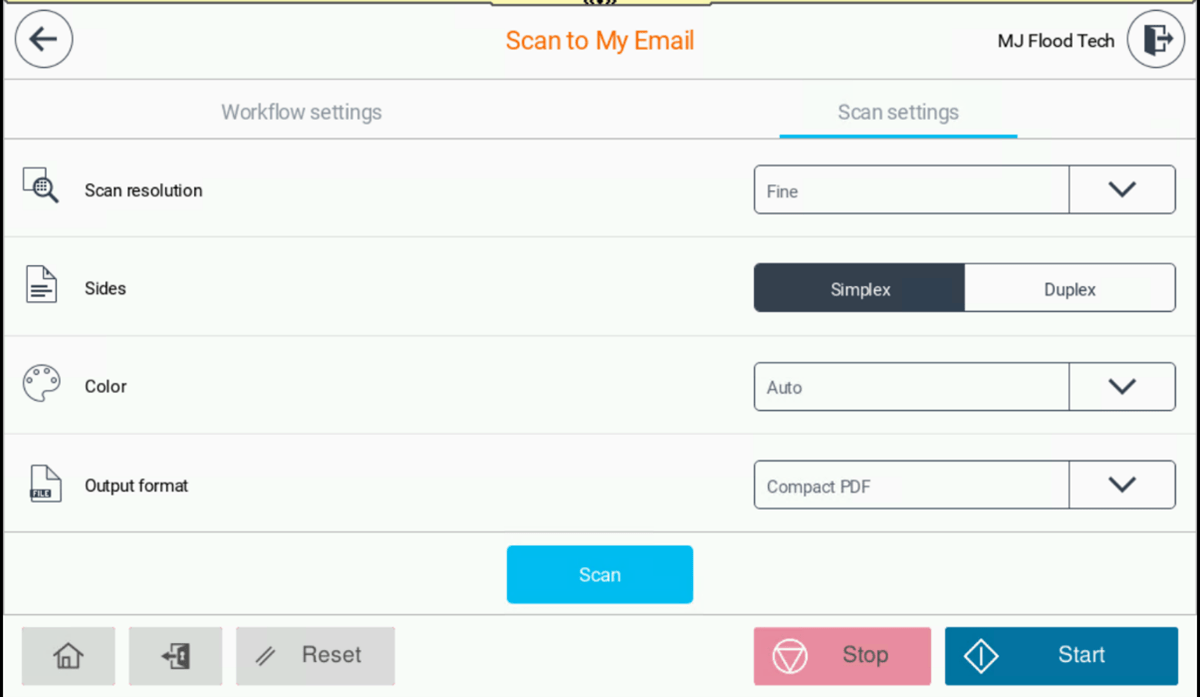
- Press Scan/Start
5. Copying
- Login to Multi-Function Printer.
- Place your document face down on the scanner glass or face up in the feeder.
- Tap “Copy” on the touchscreen
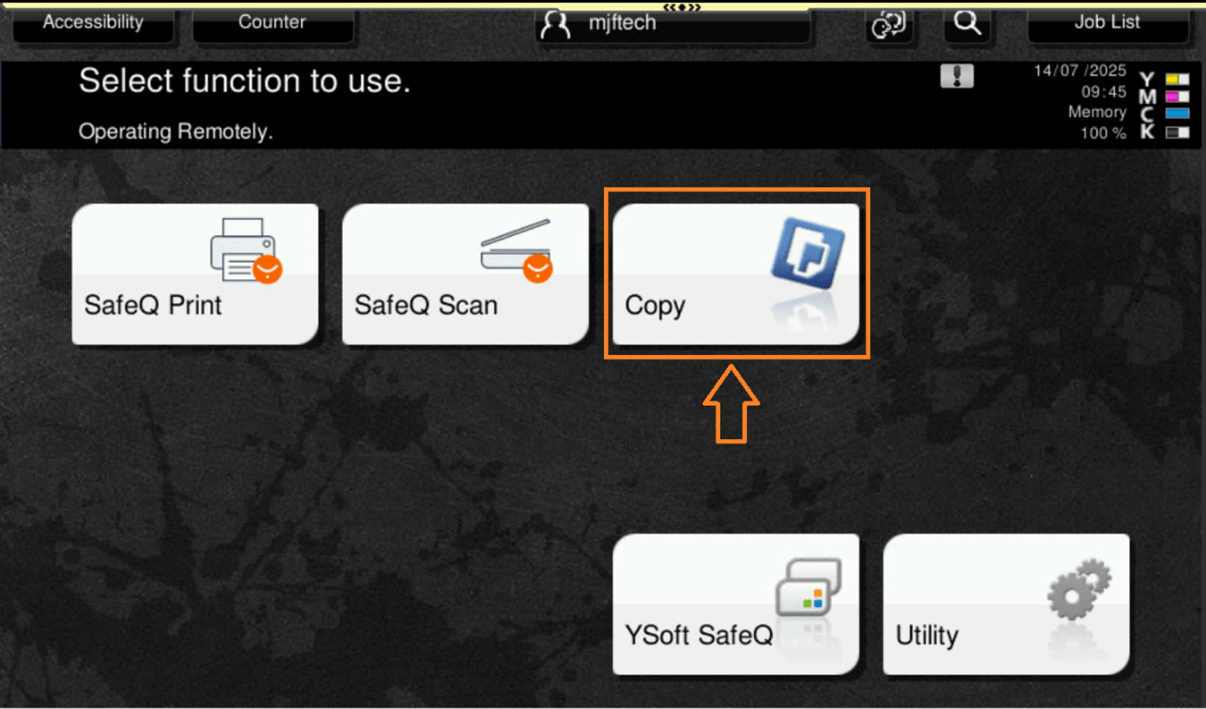
- Choose settings (e.g. number of copies, colour, size etc)
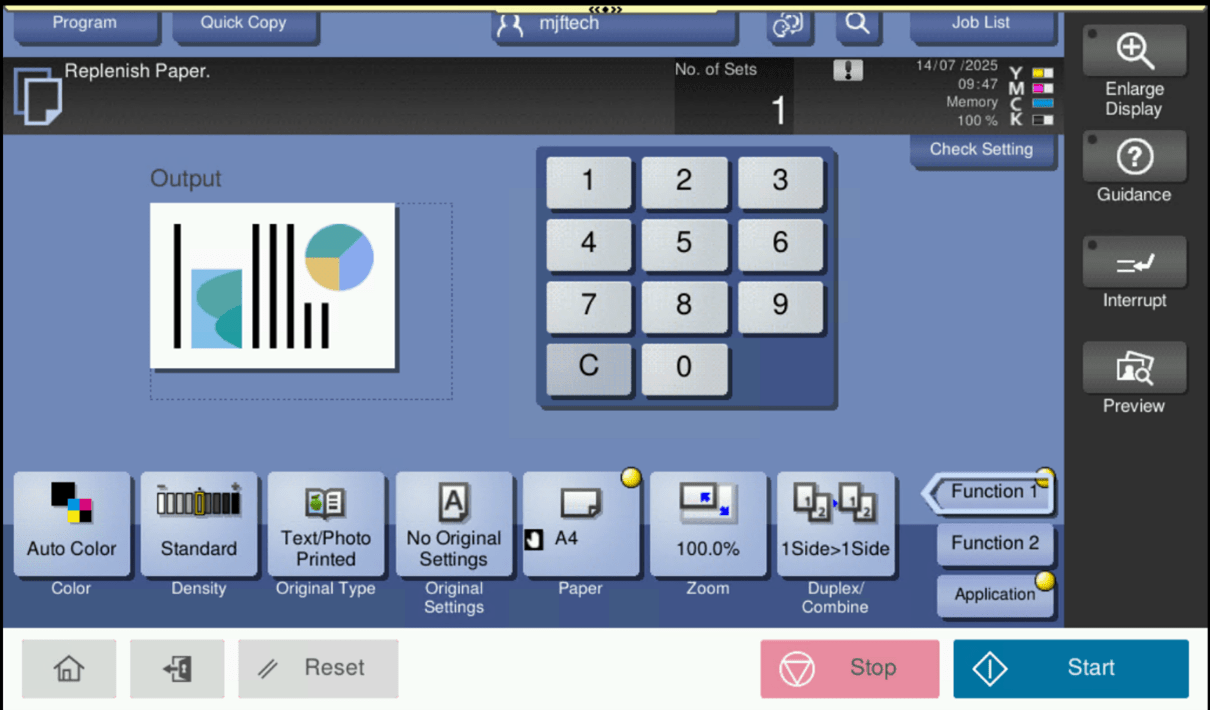
- Press Start
| Print Portal | Web Address | Services |
|---|---|---|
| Print Account Management | https://print-account.tudublin.ie | Generate PIN/card activation codes |
| Print End User Interface | https://print.tudublin.ie | Upload print jobs over web, account top-up |
Aungier Street
- Open Plan Learning Space - Ground Floor
- Library - 3 x Printers - 1st Floor
- AIB Office across from Rm 1020 - 1st Floor
- Beside lift outside Rm 2092 - 2nd Floor
- Outside Rm 2046 - 2nd Floor
- Learning Space beside Rm 3068 - 3rd Floor
- Learning Space beside Rm 4067 - 4th Floor
Blanchardstown
- Block F, Library - 2 x Printers - 1st Floor
- Block F, Library - 2nd Floor
- Block E, E103 - 1st Floor
- Block D, Corridor - Ground Floor
- Block E, E124 - 1st Floor
- Block A, Learning Space - Ground Floor
- Block G, Corridor - 2nd Floor
- Block G, Corridor - 1st Floor
Bolton Street
- Library Print Room - 2 x Printers - 3rd Floor
- Library, beside Print Room - 3rd Floor
- Outside Rm 444 - 4th Floor
- Rm 369.9 - 3rd Floor
- Linen Hall, Open Plan - Ground Floor
- Linen Hall, Studio 8B - 1st Floor
- Linen Hall, Studio 7 - 2nd Floor
- TU Dublin Airport Hangar
Grangegorman
- Central Quad, outside CQLG22 - Lower Ground Floor
- Central Quad, outside CQ010 - Ground Floor
- Central Quad, outside CQ114 - 1st Floor
- Central Quad, outside CQ427 - 4th Floor
- East Quad, outside EQ104 - 1st Floor
- East Quad, outside EQ204 - 2nd Floor
- East Quad, outside EQ302 - 3rd Floor
- East Quad, outside EQ402 - 4th Floor
- Park House, Library, PH111 - 1st Floor
- Park House, Library, PH211 - 2nd Floor
Tallaght
- Library - Ground Floor
- Library - 1st Floor
- Red Stairs - Ground Floor
- Green Stairs - 2nd Floor
- Outside Rm 107 - 1st Floor
- Lab 233 - 2nd Floor
- Sports Building - Ground Floor
- North House, Corridor - 1st Floor
- North House, Corridor - 2nd Floor
- Premier House
For information on how to access your student timetables
Visit: www.tudublin.ie/timetables
Once you register as a TU Dublin student, you will be able to purchase computer hardware and software at discounted rates through the HEAnet Store
Certain Faculties or Schools might have specific device requirements for their courses so please check with them in advance of purchasing your new laptop.
You can find the TU Dublin recommendations for Dell Devices here.
Did you know?
- You can log an incident or service request online via our online service desk
If you have any questions or need help, please contact our IT Service Desk
Monday to Friday - 9:00 to 17:00
Our walk in service opening hours are as follows:
Aungier Street - Room G006
- Monday to Friday - 9:00 to 12:30 and 14:00 to 17:00
Grangegorman - Rathdown House
- Monday to Thursday - 14:00 to 16:00 (during term)
Blanchardstown - Library
- Monday to Thursday – 10.30 to 11:00, 14.00 to 14.30, and 17.30 to 18.00 (during term)
- Friday - 10.30 to 11:00 and 14.00 to 14.30 (during term)
Tallaght – Ground floor outside lecture theatres 025/029
- Monday to Thursday -10:00 to 11:00 and 14:00 to 15:00 (during term)
When teaching begins in semester one, some of your lectures may take place online with links provided in the VLE, and your lecturers will also share with you notes, reading lists and assignments via this virtual learning environment.
Please Note: You must have logged in to your TU Dublin email address and set up your password and Multi-Factor Authentication before attempting to log in to the VLE. If you haven’t done this yet, follow the steps at the top of this page
Getting started on Brightspace
To access specific Brightspace modules, you will need to self-enrol using the Discover tool. During class, your lecturers will give you the details you need for this (the module code, the module name and the lecturer's name).
How to log in to Brightspace
- Log into Brightspace
- Username: Your TU Dublin email address
- Password: Your standard TU Dublin password
How to self-enrol on your Brightspace modules
- Get the module code & name from your lecturer (this will usually be given to you during class)
- Log into Brightspace and self-enrol on your module
- Can't find your module? Check with your lecturer if it has been made available for self-enrolment
Student Guides for Brightspace
Please check out our VLE Microsite for all our guides and FAQ's.
Problems? If your lecturer cannot help you with a problem in Brightspace, you can report it by contacting IT Support