
Getting Started for Staff
Staff can access a wide range of technology services, including email, Wi-Fi, on campus printing, virtual learning environments, Service desk and much more.
Get Started: Accessing & Activating your TU Dublin Email Account
For information on how to login to all our TU Dublin online services and internal TU Dublin academic/business applications:
- Visit our All Services page
- All staff are provided with a @tudublin.ie email address.
- Your username is [firstname.lastname]@tudublin.ie.
- You can access your email account by visiting www.office.com
Need more help?
- Check out our useful email information page on using your TU Dublin staff email address
Keep forgetting your email password?
- If you register for Self-Service Password Reset by visiting https://www.tudublin.ie/password
- You’ll be able to reset or change your password 24/7.
- Registering couldn’t be easier just provide an alternative email address, mobile number or provide answers for a number of security questions and you’ll never be locked out of your email again.
We have developed a self-service portal that allows you to log and track your calls with Technology Services 24/7.
The portal also contains a knowledge base, a repository containing easily retrievable information about our services.
- Log an IT Incident
- Having a technical issue with any of our TU Dublin technology services?
- Incident - Examples of Incidents include printer issue, wifi connectivity issue, application issue, email service issue and laptop crash
- Log an IT incident ticket below with our Service Desk team to review and action
- Log an IT Service Request
- Need access to a TU Dublin service or internal systems?
- Service request - Examples of Service Requests include software requests, classroom technology requests and system access requests
- Log an IT service request ticket below for the team to review and action
If you have any questions or need help, please contact IT Support
If you have any questions or need help, please contact IT Support
Did you know?
- We have developed a self-service portal that allows you to log and track your calls with Technology Services 24/7.
- The portal also contains a knowledge base, a repository containing easily retrievable information about our services.
Access the 'Self-Service Portal' now to Log an IT Incident or IT Service Request
Our walk in tech lounges are available as follows:
Aungier Street
- Monday to Friday - 9:00 to 12:30 & 14:00 to 17:00, Room G006
Blanchardstown
- Monday, Wednesday, Thursday - 10:30 to 11:00, 14:00 to 14:30, 17:30 to 18:00 (during term), Library
- Tuesday, Friday - 10:30 to 11:00 and 14:00 to 14:30 (during term), Library
Grangegorman
- Monday to Thursday - 14:00 to 16:00, Rathdown House - during term time
Tallaght
- Monday to Thursday - 10:00 to 12:00 and 14:00 to 16:00 (during term), Ground floor outside lecture theatres 025/029
- All our TU Dublin Office 365 services can be accessed on www.office.com
- Office365 gives you access to a wide range of Microsoft services used in the University including Email, Teams, and OneDrive.
- For information on how to use our TU Dublin Office 365 services view our helpful user guides.
As a staff member in TU Dublin you will have access to the Brightspace (https://brightspace.tudublin.ie) Virtual Learning Environment (VLE) for sharing share notes, reading lists and assignments with your assigned classes. For more information on how to get the most from Brightspace please visit our Brightspace for Staff page.
Please note: you must have logged in to your TU Dublin email address and set up your password and Multi Factor Authentication before attempting to log in to the VLE. If you haven't done this yet, follow the steps at the top of this page.
Getting started on Brightspace
- Log into Brightspace here
- Username: Your TU Dublin email address
- Password: Your standard TU Dublin password
- Login problems? Contact IT Support at IT Support
Module enrolment is controlled and automated based on lecturer assignment to CRN(Course Reference Number) in Banner 9.
For enrolment to be updated you must follow local Faculty/School procedures to have your Banner record updated.
Check out our helpful 'How to' guides below for useful information:
View our 'How to' guides information page for more guides
The New Unified Managed Print Solution, provided by MJ Flood, provides staff and students with secure printing, copying and scan to email services, using the Multi-Function Printer (MFP) devices located throughout the University.
General information:
- Print jobs can be sent to the "Safe Q TU Dublin" print queue and securely released from any MFP device
- You may print Black & White or Colour print jobs from any MFP device
- Collect your print jobs within 24 hours
- You must authenticate to use MFP device & collect prints using your staff/student card and pin
- Double-sided Black & White printing is default
Contact
For any queries on printing, copying or topping up your account, please contact MJ Flood at service@mjflood.ie or 01-4663500
1. Generating a PIN Code
To log in at an MFP you will need a PIN code and a registered TU Dublin Student or Staff card.
You can generate a PIN code by going to print account portal web address:
https://print-account.tudublin.ie
- Login to the print account portal with your TU Dublin credentials.
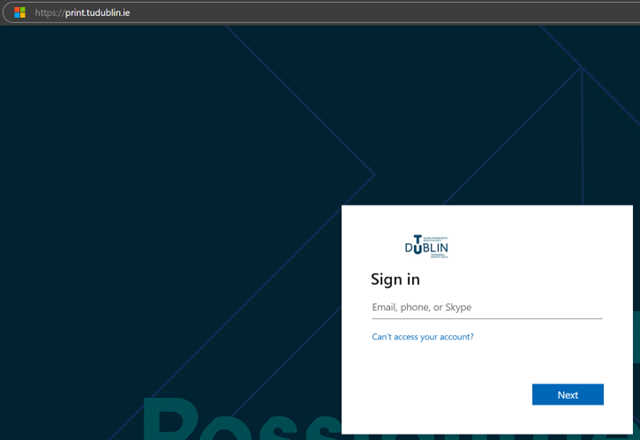
- Select "Generate PIN" option
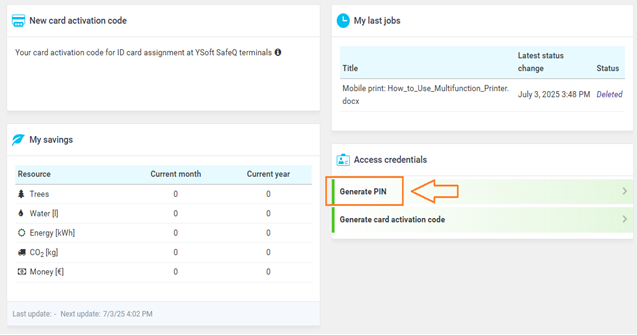
- Your unique PIN will be displayed at time of generation and an email containing your PIN will also be sent to your email address.
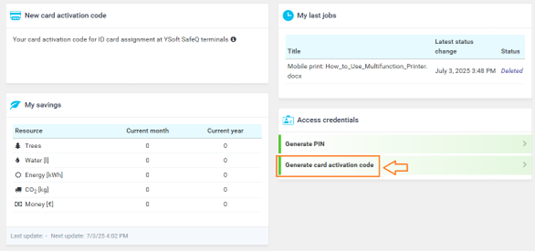
Please note, if your TU Dublin card isn’t recognised at a Multi-Function Printer, you can generate a card activation code and register it against your account at one of the printers.
2. Submitting Print Jobs
3. Releasing Print Jobs
Login to Multi-Function Printer.
- Tap your TU Dublin card over the card reader.
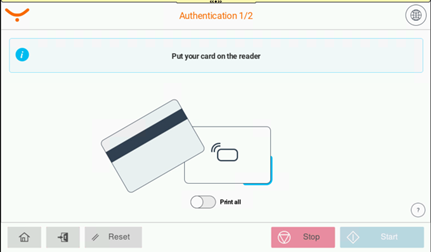
- Enter your PIN code at Multi Function Printer touch screen
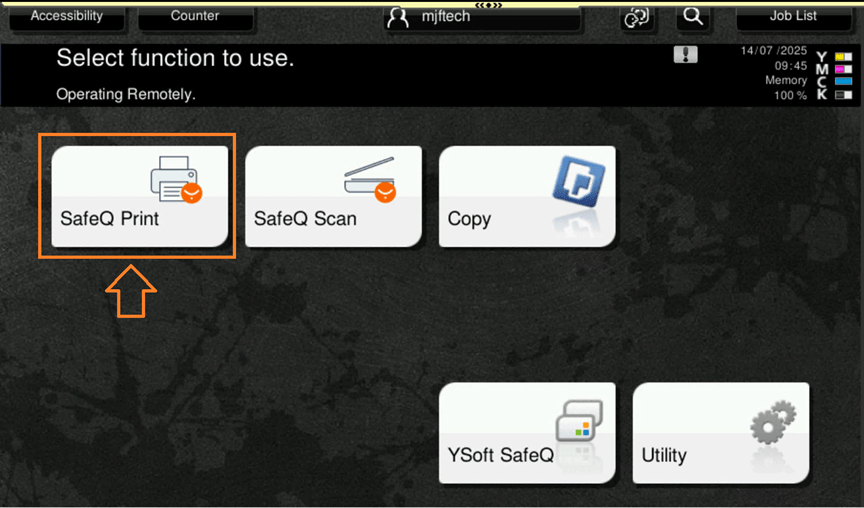
- Tap “SafeQ Print” on the touch screen.
- Select print job/s to print
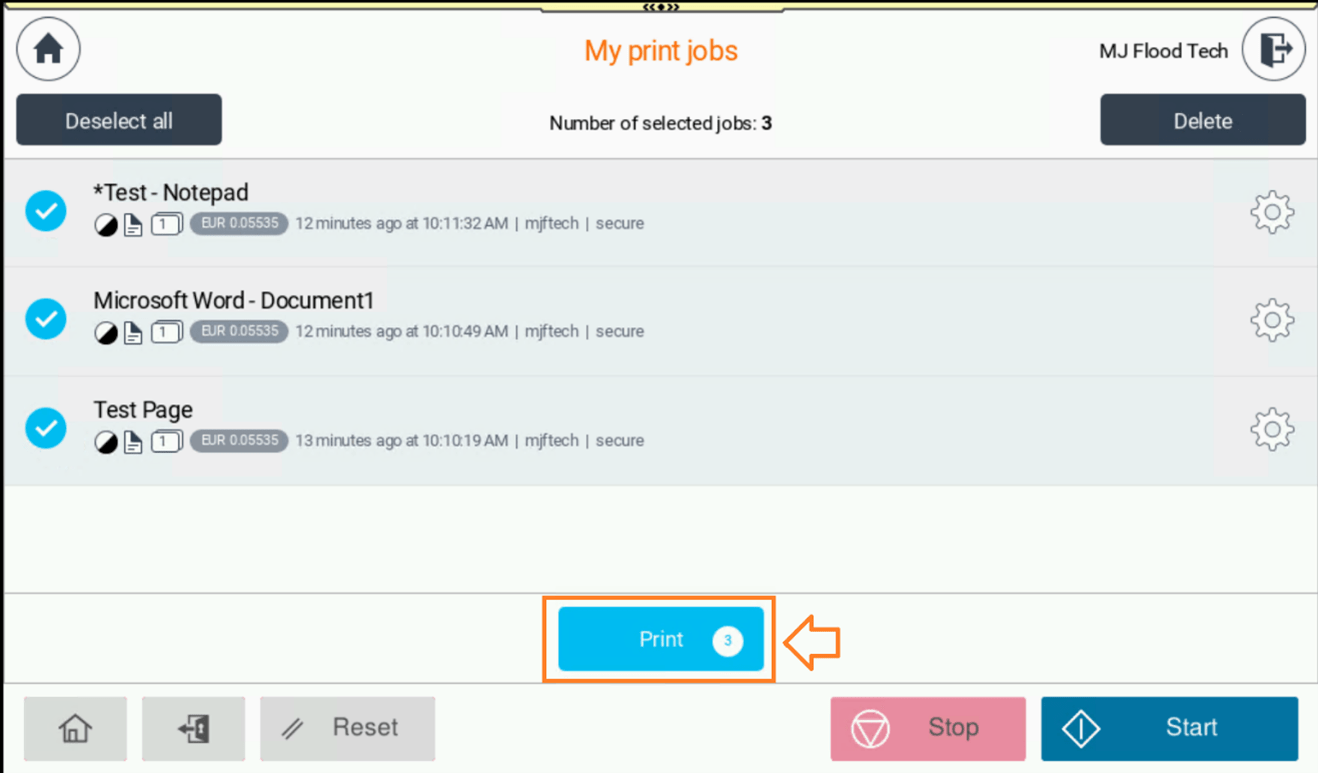
- Press Print/Start
Optional: To change output print settings at printer per print job, press clog wheel
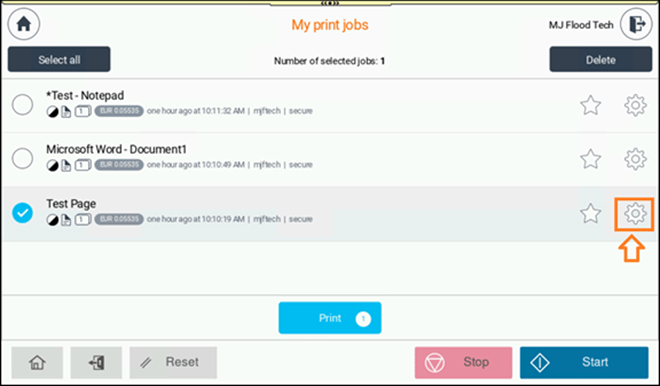
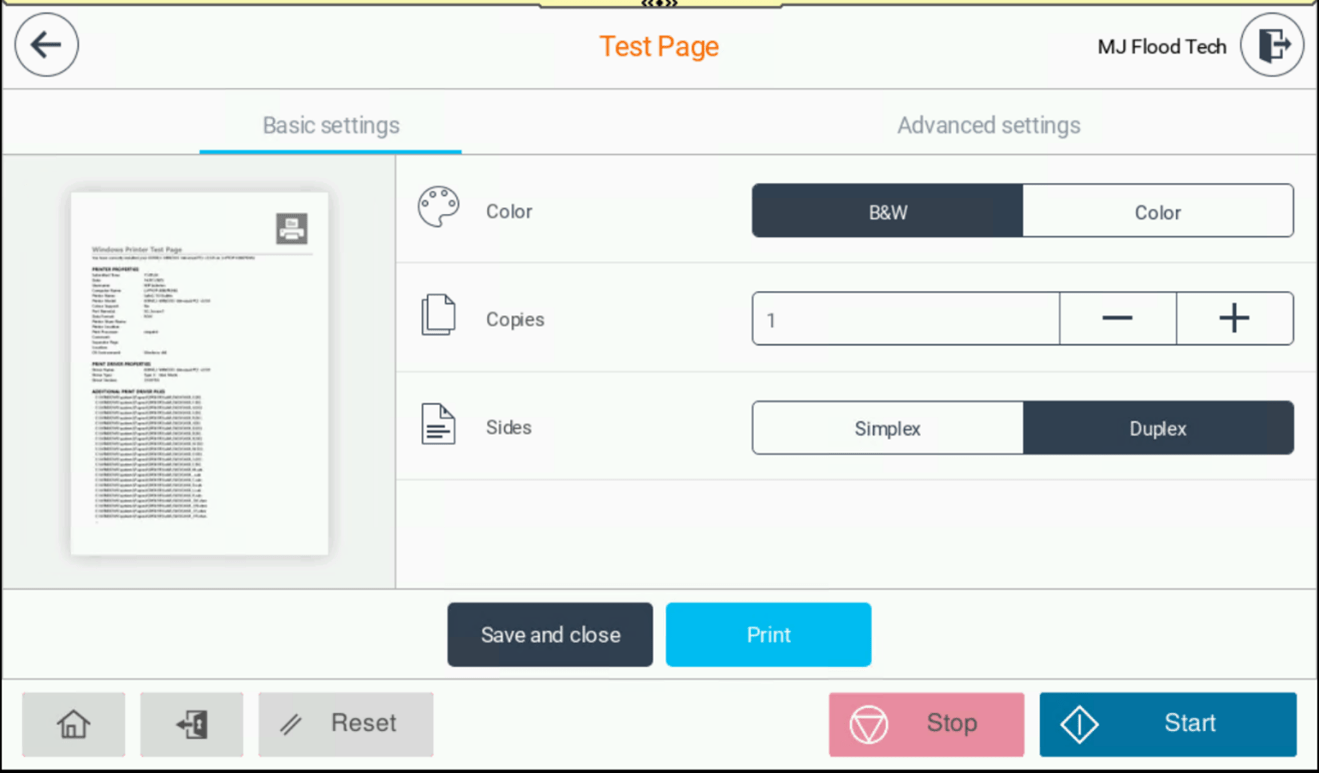
- Change required output settings.
- Press Print/Start
- To log out press the Access key
4. Scanning to Email
- Login to Multi-Function Printer.
- Place your document on the scanner.
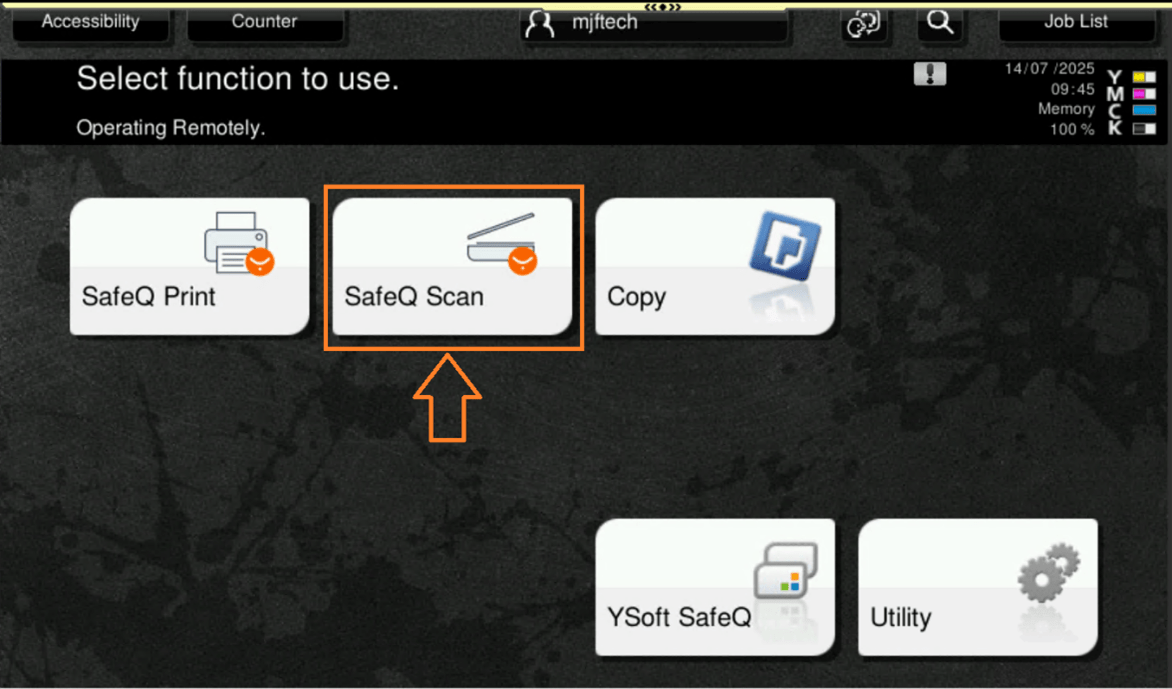
- Tap “SafeQ Scan” on the touchscreen
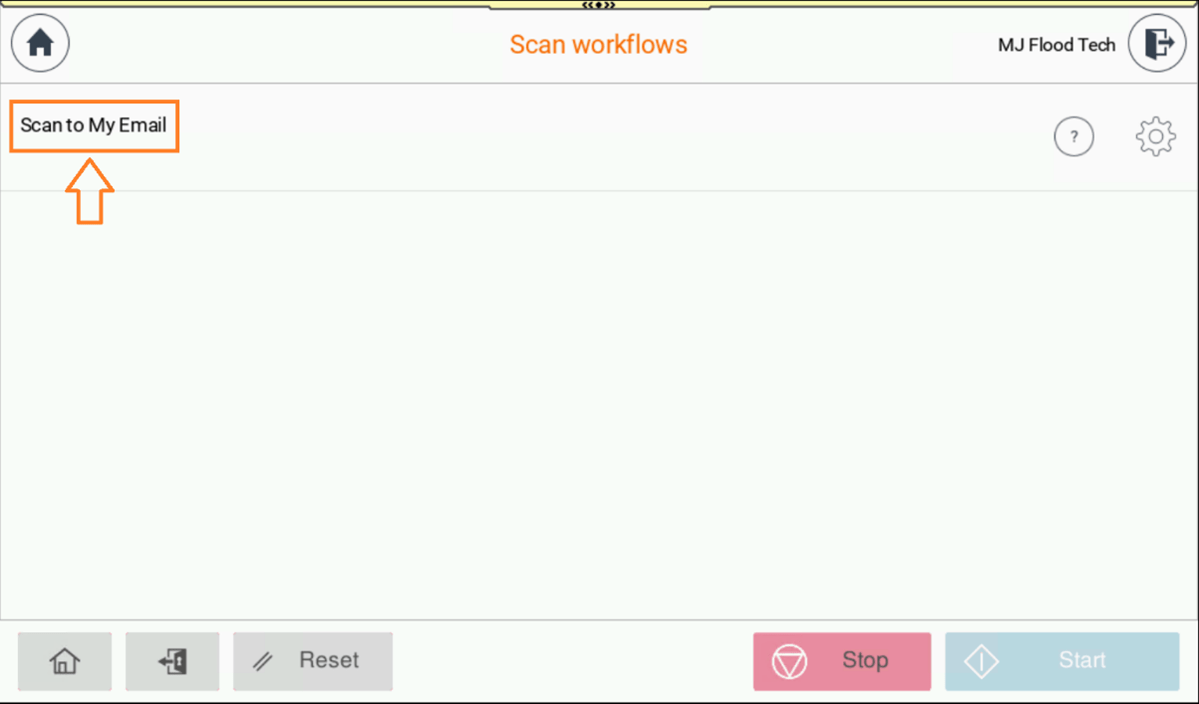
- Select Scan to My Email
- Press Scan/Start
- Optional: To change default scan settings press the clog key
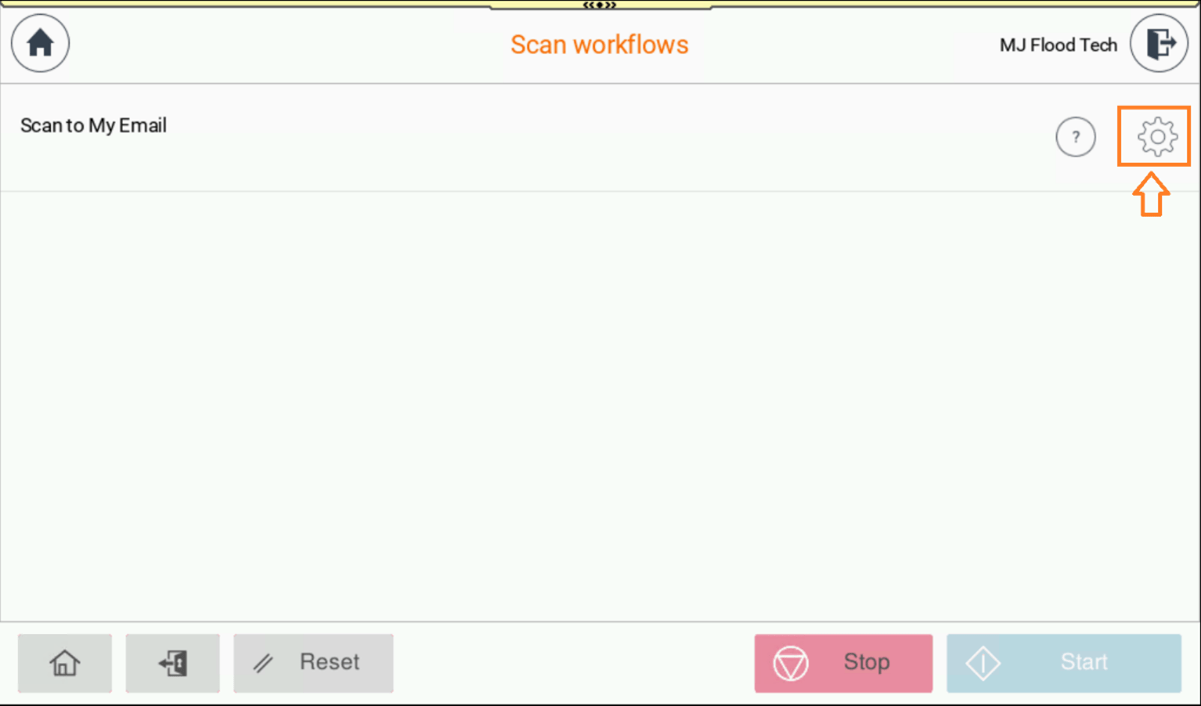
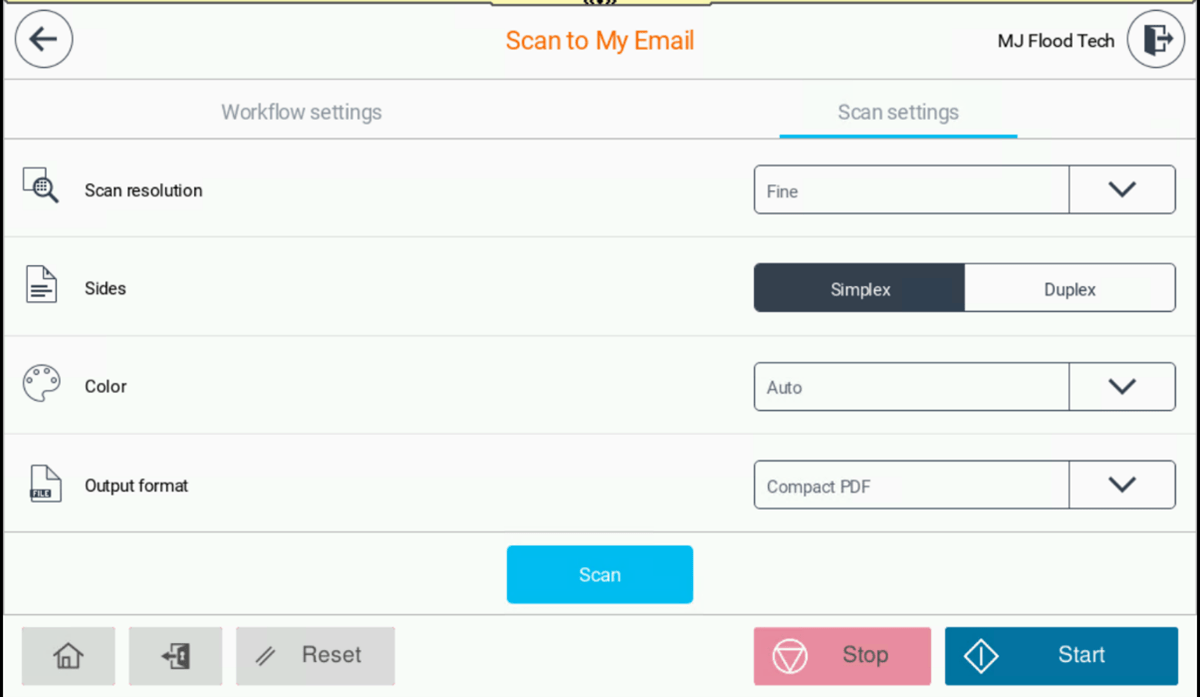
- Press Scan/Start
5. Copying
- Login to Multi-Function Printer.
- Place your document face down on the scanner glass or face up in the feeder.
- Tap “Copy” on the touchscreen
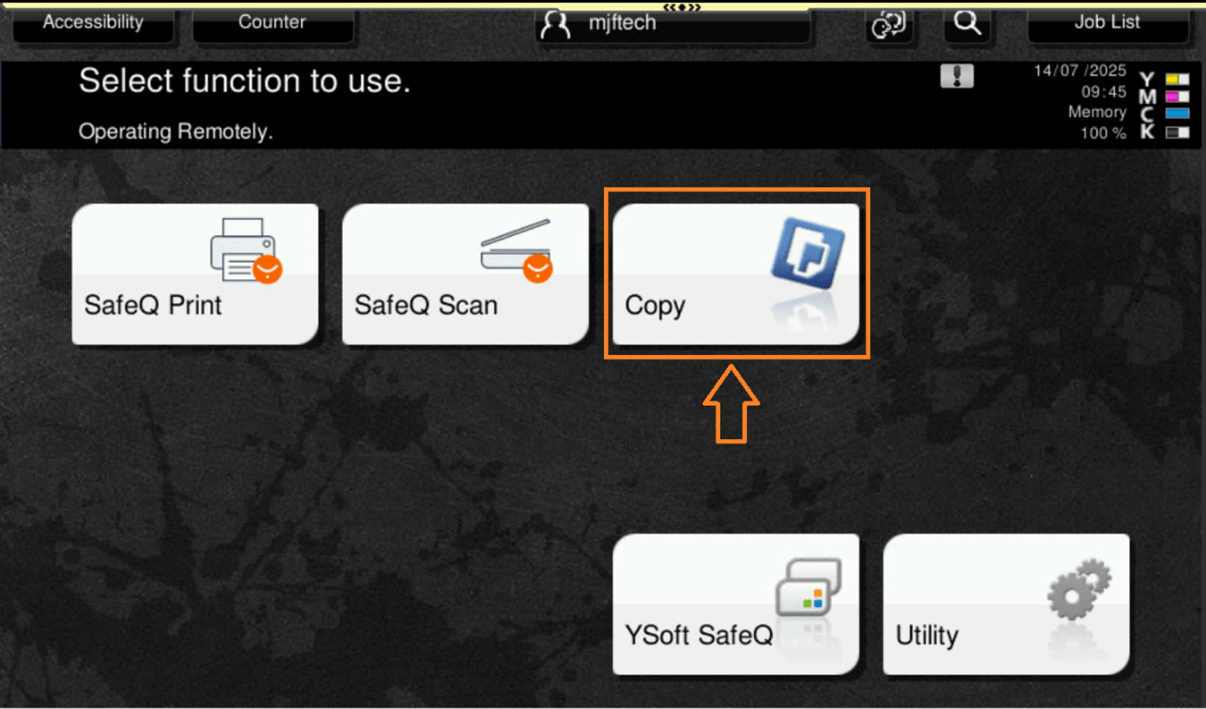
- Choose settings (e.g. number of copies, colour, size etc)
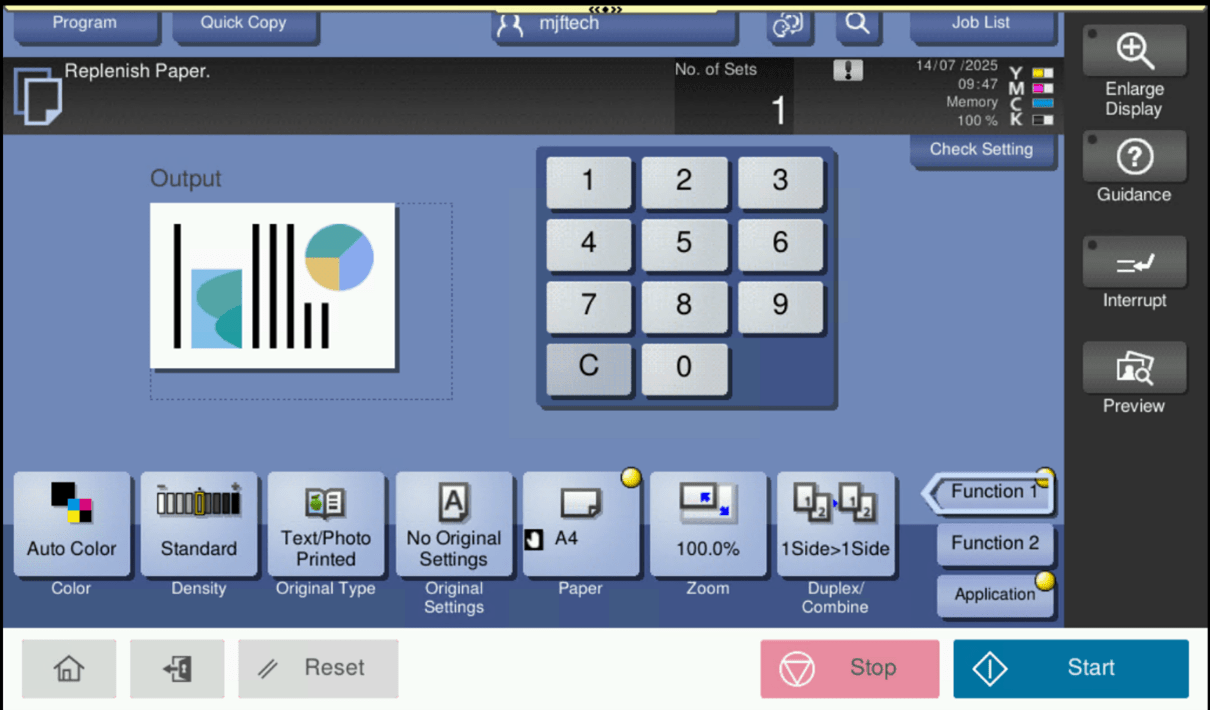
- Press Start
| Print Portal | Web Address | Services |
|---|---|---|
| Print Account Management | https://print-account.tudublin.ie | Generate PIN/card activation codes |
| Print End User Interface | https://print.tudublin.ie | Upload print jobs over web, account top-up |
Do you require access to an ICT service or business application within TU Dublin?
Request access now via our online forms
For information on accessing/setting up VPN on your device to access internal campus systems at home
Visit our staff VPN information page
There are a wide range of media services available to staff members within TU Dublin such as:
- Classroom Technology
- Media / Event Production
- Digital Signage
- How to Guides
- How to raise a Service Request with Media Services
For information on the above services & how to avail of these offerings
Visit our Media Services information page
How do I get a list of all the students in my class with their student numbers, email addresses and photographs?
- You can access all this information on the Tutor Class Lists
Note: This service is only available for staff based in our City Centre campus