
Brightspace FAQs for Staff
These FAQs are designed to answer the most common Brightspace-related questions, particularly with regard to practices and processes here at TU Dublin.
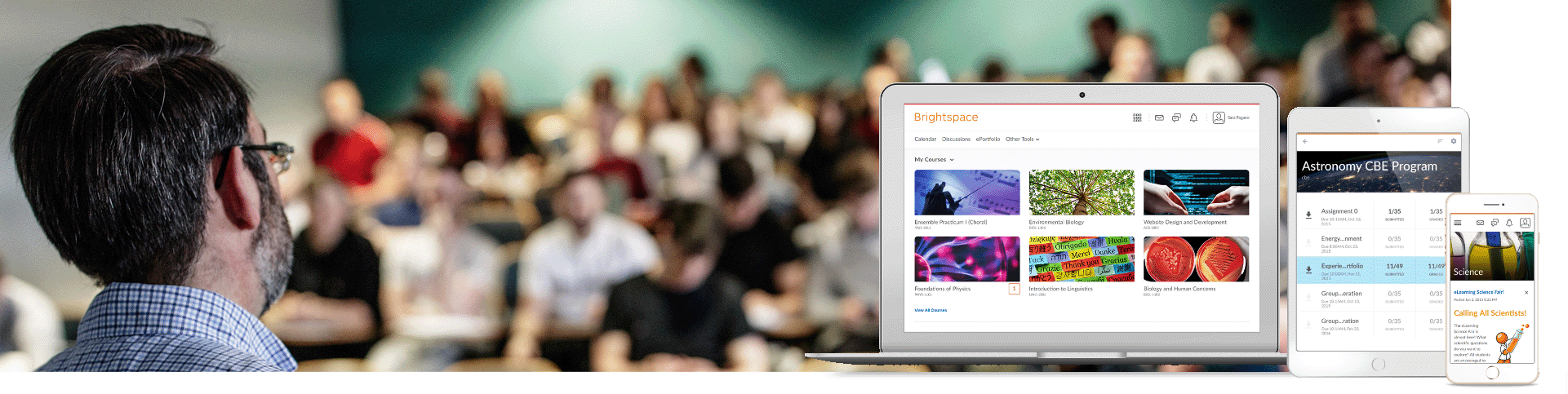
- View the Brightspace FAQs below by clicking on any question.
Login via the VLE microsite or directly by visiting www.brightspace.tudublin.ie
- Log in using your full TU Dublin email address for username, followed by your standard password
- This is the same login as you use to access your Office 365 and University email accounts
- D2L Brightspace support can be contacted 24/7 after login (via the help icon)
- Staff login problems? Log an incident with the IT Service Desk
- Recommended browsers - Edge, Chrome, Firefox, Safari
The modules you are seeing under the “2025-26” tab are based on the CRN’s you were linked to in Banner 9.
The number of Brightspace Shells your are enrolled in is a reflection of the number of CRN's you are associated with in Banner 9.
Once you have been disassociated from the CRN, an automated process will unenroll you from the Brightspace Shell.
All lecturers have the option of adding/removing other students and lecturers via the CLASSLIST tool.
The classlist tool also shows you everyone who is currently enrolled on your module, and when they last accessed.
Note: Before removing a colleague from a module it is recommended to confirm that they are ok with this - this is particularly important if you can see in the class list that they have already accessed the module.
Managing your classlist manually.
- Go to the module’s home page
- Click on “Module Tools“ – “Classlist”
- This brings up a list of all those who have access to your module (useful information
- To ADD a student/lecturer
- Click “Add Participants – Add Existing Users”
- At “Search For…” enter a name/email and click magnifying glass
- If the user exists his/her details will appear on screen
- Positively tick the check box to the left of the name, select the appropriate role from the dropdown and click “Enrol Selected Users”
- To REMOVE a student/lecturer
- Positively tick the check box to the left of the name
- Click Unenrol and when asked click “Yes” to confirm
- To Unenrol yourself
- Please go through your schools local procedures to have your Banner record updated. Once you have been disassociated from the CRN, an automated process will unenroll you from the Brightspace Shell
- Select your preferred module from the Brightspace courses widget.
- Once in the module select Module Tools
- Select Classlist
There are various options to allow you to filter and control the number of entries displayed on screen.
There is no option to export to Excel or .csv
The modules you are seeing under the “2025-26” tab are based on the CRN’s you were linked to in Banner as of August 5th 2025.
please go through your schools local procedures to have your Banner record updated.
Once you have been associated with the correct CRN in Banner, an automated processes will enroll you in the Brightspace Shell.
Does your external examiner already have a Brightspace account? If yes, then just add him/her to your module via the classlist tool, making sure to select the "external examiner" role (Brightspace Classlist-How To Manually add / Remove Students).
If your external examiner does not already have a Brightspace account then you can request one to be created. Just complete this Support Form giving the name and email address of your external examiner, and asking for an exernal examiner account. Within approx 3 days of receipt of your request the account will be created and the login details and further instructions will be emailed to you.
Things to note about the external examiner role:
- The external examiner role can see all content in your module - if you don't want the external examiner to be able to see content then you need to hide that content before giving the external examiner access
- The external examiner role can see all student assessment submissions (quizzes, assignments, discussions etc)
- The external examiner role, generally, cannot make any changes to your module
- Users with the external examiner role will generally access Brightspace via https://www.tudublin.ie/brightspace/externallogin/ It is up to the TU Dublin lecturer who requests the external examiner Brightspace account to provide login details to the extern (these will initially be provided to the TU Dublin lecturer by the EL-TAT team)
- As Brightspace modules vary greatly from programme to programme (and lecturer to lecturer) you may need to consider giving some orientation advice to your external examiner, or facilitating a short Bongo/teams screenshare session to guide your external examiner around your Brightspace module.
The new modules shells for 2025-26 are blank and need to be populated with content: you can populate new Brightspace shells by either importing the content from the previous year's module (a two-minute process) or by building a new module from scratch.
Please view the following guide.
- Importing the content from the previous year's module
- Remember: You can view all our Bitesized Brightspace user guides for Staff in one place
New Lecturer user account
Once your Banner account is created your Brightspace account will be provisioned with the lecturer role.
If you are a new lecturer and find you cannot log into Brightspace your first step should be to check with your Head of School / Assistant Head of School that you are associated with at least one module in Banner. If your HOS/AHOS confirms that your Banner record exists but you still cannot log into Brightspace then please report this via the support form.
Brightspace accounts for ALL other staff
If you have recently joined TU Dublin in a non-teaching role and require access to Brightspace (for administrative purposes, as tutor demonstrator, to avail of training modules, etc) then please request a Brightspace account via the support form giving your name, staff number and a short reason why you require the account.
- A good place to start is with Bitesized Brightspace -
- You can also visit the official Brightspace community website for the latest 'How to guides' and more.
- Key things to remember for academic year 2025-26:
- The modules you will be teaching in academic year 2025-26 will become available to you on in August 2025
- When issued, read "Recent Key emails and updates to all Staff" (see the top of this FAQs page)
- After logging into Brightspace you have 24-hour chat and email access to "Brightspace 24/7 Helpdesk by D2L" (on the bottom right corner of the screen 'Get Help').
- Still have a question? log your query here: VLE support form
Depending on the sort of help you need there are a couple of different options
Queries about your modules or your account?
- Missing a module in Brightspace?
- Having problems logging in?
- Can't locate a student or colleague in Brightspace?
- All administrative queries like this should be reported via the VLE support form
- Please be sure to give all relevant information eg your staff number, module code, module name, CRN etc
Need help with Brightspace tools?
- After logging into Brightspace you have 24/7 chat and email access to Brightspace 24/7 Help Desk (bottom right corner of the screen click on 'Get Help'
- Brightspace 24/7 Help Desk is provided by D2L and the chat facility puts you in contact with one of their Brightspace experts
- You also have the option in Brightspace Help Desk Support of emailing a query through, or reviewing their online help guides
- Keep an eye on Bitesized Brightspace which is updated regularly
- Check out the official Brightspace Community website for 'How to guides' and more for the very latest.
Advanced Brightspace query?
- Are you an advanced Brightspace user and would you like to pick the brains of other academic users around the world? Then join the Brightspace Community
The Brightspace Brightspace Releasing Assessments Essential Checklist covers making sure your students can see the assignment / quiz, key settings in your quiz, key settings in your assignment, how to set Special Access, and more.
- Remember: you can view all staff Brightspace via our 'Bitesized Brightspace Resources for Staff' page.
Your 2024-25 modules
- Remember, Brightspace modules are now unique - you cannot reuse the same module from year to year. Students now keep access to the modules they have taken from year to year over the course of their programme - therefore no Brightspace modules where teaching has concluded should ever be cleared out, reset and/or reused with a different cohort.
Do not un-enrol students and do not delete assessment submissions. - Your 2024-25 modules have a default end date of 31st August 2025 and after this date the module will appear as “closed” and no additional students will be able to self-enrol on those modules. The students already enrolled on those modules will still be able to access the modules, and the content within them, for revisions purposes.
- A note about end dates: The end date on your module can be set by you. For the vast majority of 2024-25 modules an end date of 31st August 2025 is appropriate (and this is the default closing date of all 2024-25 modules). If your module is one which is still actively being used for teaching beyond 31st August 2025 then you can change the end date on your module (this would be appropriate if your module does not follow the standard academic year). How to change end date: In your module navigate to “Module Tools - Module Admin - Module Information” and change end date as appropriate, remember to click Save)
- What about supplemental exams and late assignment submissions? Student can continue to access modules to take supplemental exams and submit course work after the module end date. However, if you wish to extend the end date into September to avoid students seeing "closed" on the module you can do so following the instructions above.
When you log into Brightspace the first page you see is the Brightspace home page. This contains the "My Modules" widget where all the modules you have access to in Brightspace are located.
Modules are distributed across a number of different tabs and have different properties depending on the tab they sit under. You will only see a given tab if you have access to a module sitting on that tab. The main tabs are:
Pinned: "Pinning" allows you to identify the modules which you access most frequently and need speedy access to. To pin a module, just click on the Pin icon on the upper right of module tile (visible in the "my modules" widget on your Brightspace home page). The module will then appear in both its original tab and also the Pinned tab.
2025-26: (This tab will become available August 2025.) It contains the shell modules available to you for use in teaching for the 2025-26 academic year. The modules listed here are based on your module associations in Banner as in mid-July 2025, therefore you may have more (or fewer) modules than you are actually teaching (see separate FAQs for details of how to handle this).
2024-25: You will only see this tab if you are currently enrolled in Brightspace on one or more 2024-25 modules.This tab contains the modules which were used for teaching in the 2024-25 academic year. For the vast majority of programmes (all of those following the standard academic year of 1st Sept to 31st August) teaching has now concluded on the 2024-25 modules. You may still however need to make some changes to these modules for the purposes of facilitating repeat exams in August 2025 and this is ok - however, students keep their access to the modules they have taken from year to year over the course of their programme, therefore no modules where teaching has concluded should ever be cleared out, reset and/or reused with a different cohort. Do not un-enrol students and do not delete assessment submissions.
For more details on your 2025-26 modules, access for repeat students etc, see "Recent key emails and updates to all staff" information at the top of the FAQs for staff.
Sandbox: This is a test area where you can try out Brightspace functionality and tools. The Sandbox can also be used during online training sessions and whenever you want to experiment with a new tool or function in Brightspace. If you do not see the Sandbox tab in your "My Modules" scroll section and you need on you can request it by filling out the VLE Support Form.
The modules you are seeing under the “2025-26” tab are based on the CRN’s you were linked to in Banner as of August 5th 2025.
please go through your schools local procedures to have your Banner record updated.
Once you have been associated with the correct CRN in Banner, an automated processes will enroll you in the Brightspace Shell.
If you require a Program Information area in Brightspace you can request one via the VLE support form.
Please see Brightspace Training For Staff and Bitesized Brightspace User Guides for online resources
You can also get 24/7 online support from Brightspace via the Help section within the Brightspace Application
The Q6A questionnaire is given to students by the lecturer in order to obtain the views of students on their experience of an academic module. The feedback enables the lecturer to review the module delivered. The Q6A survey is available in paper form or through an online survey in Brightspace. The instructions below relate to making the survey available in Brightspace. The results of the Q6A are anonymous, are available to the relevant lecturer, and are retained by the relevant lecturer.
NB! It is extremely important that you confirm in Brightspace that your Q6A survey is set to anonymous!
Full Details: Adding the Q6A Survey to your Brightspace Module
Download the Q6A Brightspace zip file NB!! When you click on this link you will see the contents of the zip file listed on screen. Do not download these! Navigate to the download option at the top left of the window and use this to download the file called Q6A_Brightspace.zip ONLY
Webinars allow you to teach your students in a live online environment where you can present a lecture/PowerPoint, and where your students can interact with you and their classmates. A webinar is the best online alternative to a traditional lecture. A webinar/virtual classroom tool (Bongo) is available to all TU Dublin staff via Brightspace.
If, when scheduling a Bongo session, the lecturer ticks the option to 'publish recorded meeting' then...
- the public url to any Bongo recording is permanent
- the recording can be found and accessed from within the module by students (module tools>virtual classroom)
- students could copy the public url from the menu of that recording
- the recording exists until such time as the lecturer deletes the recording from the recordings page
If, when scheduling a Bongo session, the lecturer does not tick/un-ticks the option to 'publish recorded meeting' then...
- the recording does appear in the recordings list for the lecturer
- the recording does not appear in the recordings list for students so they cannot find the recording
- the lecturer must add a link to the recording into the module in order for students to watch the recording. This is done by using the recording’s public url, which is included automatically in every recording. The public url for a recording can be found by going to the module it was scheduled in, navigating to module tools>virtual classroom, clicking on the three dots next to the recording and selecting ‘copy public url’. NOTE: The student will see the public url when they access the recording and will be able to copy that url and share it with others if they so wished.
Your Bongo recording exists until such time as the lecturer deletes the recording from the recordings page. Once a recording is deleted, the public url to that recording breaks and the recording is no longer available
Student access to Bongo Recordings and Student Privacy
Recordings of sessions should only be shared within a Brightspace module for the students who have registered for that module, and for the purposes of helping them with their studies. Recordings that contain any interaction with students (voice or chat) should not be shared across different modules without the explicit consent of those who feature on/in the recordings. Students should be advised that if they need to turn on their cameras, that no personal items or family members are in the background ie students should have a blank wall or similar behind them.
Using Bongo recordings from year to year
When new module shells are created in Brightspace for the upcoming academic year, lecturers use the ‘import/export/copy components’ tool to migrate content from existing modules into those new shells, however, this tool does not copy over Bongo recordings from one module to another, meaning that those recordings will not be accessible in the new modules from module tools>virtual classroom> the ‘recordings’ tab.
However, Bongo recordings do live permanently in the cloud and the public link to those recordings can be shared in any module via the ‘create a link’ tool.
NOTE: The students will see the public url when they access the recordings in this way and so will be able to copy that url and share it with others if they so wished.
Deleting a Bongo Recording
To request that that recording is deleted, Bongo must be provided with either the public url or the meeting title, start time, and the name of the person who scheduled it. This request can be made through the D2L helpdesk.
Once a Bongo recording is deleted by a lecturer from their module, it's kept on the Bongo servers for 60 days in case that lecturer changes their minds, then it's purged.
If the lecturer wants the recording deleted immediately, then they must provide Bongo with public url or the meeting title and dates/times and the name of the person who scheduled it and request its immediate deletion from Bongo servers. This request can be made through the D2L helpdesk. Once a recording is deleted, the public url to that recording breaks and the recording is no longer available.
Bongo and TU Dublin’s VLE Retention Policy
TU Dublin's retention policy is being reviewed as of August 2025. As soon as this is complete this section will be updated.
Can I download Bongo Recordings
If you download a bongo recording, it will not be in the form of a single, shareable file (such as an MP4 video). Rather, these recordings are downloaded as zip archive files, effectively acting as a container for all of the elements that make up a bongo recording. This has some implications for how downloaded bongo recordings are watched, shared, and re-used. If you require more information, Downloading your Virtual Classroom Meeting Recording
Brightspace takes all of its data from Banner, therefore, if a module title is incorrect in Brightspace then it must be incorrect in Banner also.
Please go through your schools local procedures to have your Banner record updated.
There is a 30-day limit on restores of content. Content restores have to be requested from D2L.
Some items can be restored by a lecturer or administrator/super administrator within the module: This includes deleted assignments, assignment submissions and quiz attempts. (Note that quizzes themselves cannot be restored via the module). These items may be available for longer than 30 days.
How can I recover a deleted unit?
To restore module/units/quizzes/assignments you need to request D2L support.
Please check below article on what can be restored within Brightspace.
Brightspace is synchronised nightly with Banner and Banner in turn is updated regularly from CoreHR. Please Contact HR and fix the spelling of your name, then contact Registrations/Exams to ensure that the change has been updated on Banner. Once the change is showing in Banner, your name should update in Brightspace overnight.
In order to access Brightspace, our new system will require all students to pay 25% of tuition fees when registering.
This does not apply to SUSI grant recipients or Research students. Please note that the payment method for supplemental exams will also change.
The new system will require Students to choose and register for your modules at the start of the academic year,
Remember
- Students do not have access to any modules until the lecturer sets the start date on the module.